Other Reports
Other Reports category includes Change Log,
VM Inventory Parent and VM Inventory Child reports, each of which is explained
below.
Change Log Report
This report displays change details for all
the discovered nodes with respect to hardware configuration and software
installation or uninstallation.
On the SapphireIMS menu, point to
'Reports' and click 'Asset and Inventory Reports'.
Click
the ‘Other Reports’ link. Click on the ‘Add’
button. A screen to display the report details is displayed.

Serial
No |
Field
Name |
Description |
1 |
Title |
Enter
the title of the report.
|
2 |
Description |
Brief
description of the report to be created.
|
3 |
Report Type |
Select
the type of the report as Other Reports.
|
5 |
Miscellaneous Inventory Report |
Select
one of the Change Log Reports. |
6 |
Node Selection |
|
|
Criteria |
Select
the appropriate filter criteria (OU/domain/OS/Device Category/Baseline
Compliant Nodes) to be displayed in the report.
|
|
Organization Unit/Domain/OS/Device
Category/Baseline Compliant Nodes
|
Select
the corresponding criteria.
|
|
Select Hosts |
By
default ‘All Hosts of Bangalore OU’ will be selected (If 'Bangalore’
is the OU selected). If only specific hosts needs to be
selected then click on the sign ‘ ’ to select
the hosts from the ‘Search Hosts’ window. ’ to select
the hosts from the ‘Search Hosts’ window.
|
5 |
Fields Selection |
Select
the fields which have to appear in the report columns. |
|
Filter |
In
the ‘Type’ drop down, select the field types associated with the
filter to be displayed in the report.
|
|
Type |
Select
all the required fields. These fields will be displayed as a separate
column.
|
6 |
Advance Filter |
This
filter is used to display the data based on the fields and the
criteria selected.
|
|
Filter |
Select
the fields.
|
|
Type |
Select
the field type.
|
|
Criteria |
Select
the condition.
|
|
Value |
Enter
the value for the selected field type.
|
7 |
Time Scale |
Select
the appropriate time scale for which the report details are required.
You can also enter a custom time period in the boxes. |
8 |
Access To |
The
Access control permissions for the Report can be set here. |
|
Role |
Select
one or more Roles for which the permission has to be given. |
|
Users |
Select
one or more Users for whom the permission has to be given. |
|
Access Permissions |
Check
one or more boxes to give permission to 'View', 'Edit', 'Delete'
reports or check on 'All' if all permissions are to be given. |
|
VM Reports
Virtual Machine Host Inventory report displays
inventory details of all virtual host machines such as IP Address, RAM,
OS architecture, guest status, data collection status, MAC address, CPU
model, CPU count and free space. Virtual Machine Guest Inventory
report displays inventory details of all guest machines for a particular
host machine. Information such as guest host name, OS, MAC address, IP
address, RAM, disk and status for each guest is displayed. VM Cluster
Summary report displays cluster details like cluster name, host count,
guest count, network count, datastore count, total processor, total CPU
resources and memory capacity.
On the SapphireIMS menu, point to
'Reports' and click 'Asset and Inventory Reports'.
Click
the ‘Other Reports’ link. Click on the ‘Add’
button. A screen to display the report details is displayed.
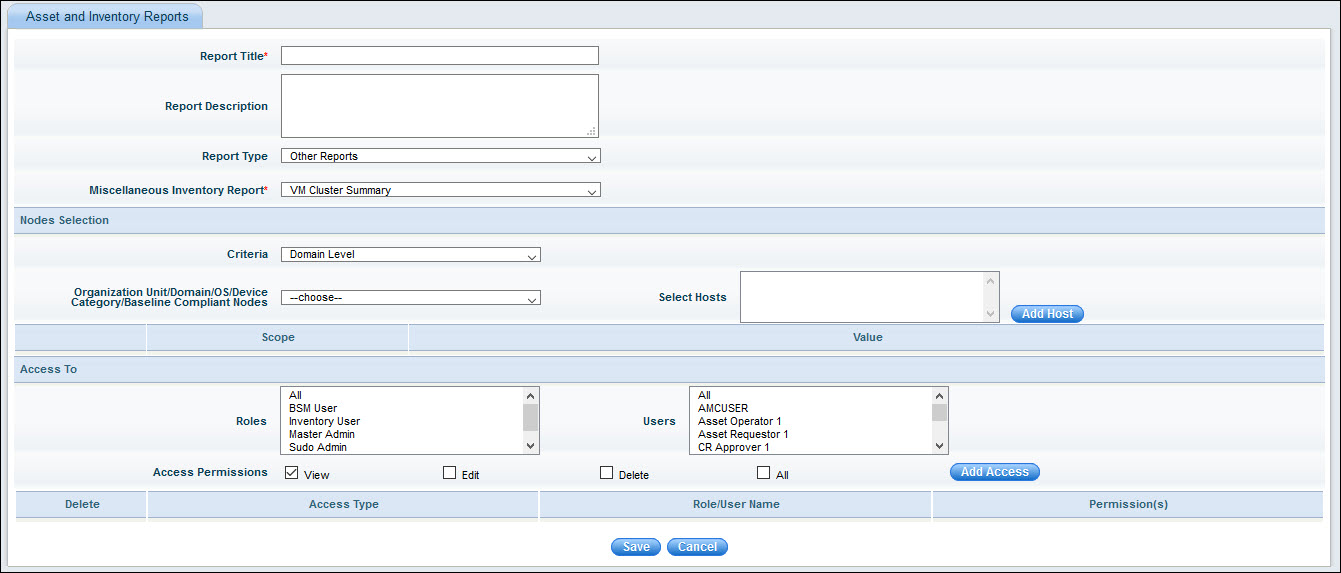
Serial
No |
Field
Name |
Description |
1 |
Title |
Enter
the title of the report.
|
2 |
Description |
Brief
description of the report to be created.
|
3 |
Report Type |
Select
the type of the report as Other Reports.
|
5 |
Miscellaneous Inventory Report |
Select
one of the VM Reports. |
6 |
Node Selection |
|
|
Criteria |
Select
the appropriate filter criteria (OU/domain/OS/Device Category/Baseline
Compliant Nodes) to be displayed in the report.
|
|
Organization Unit/Domain/OS/Device
Category/Baseline Compliant Nodes
|
Select
the corresponding criteria.
|
|
Select Hosts |
By
default ‘All Hosts of Bangalore OU’ will be selected (If 'Bangalore’
is the OU selected). If only specific hosts needs to be
selected then click on the sign ‘’ to select
the hosts from the ‘Search Hosts’ window.
|
7 |
Access To |
The
Access control permissions for the Report can be set here. |
|
Role |
Select
one or more Roles for which the permission has to be given. |
|
Users |
Select
one or more Users for whom the permission has to be given. |
|
Access Permissions |
Check
one or more boxes to give permission to 'View', 'Edit', 'Delete'
reports or check on 'All' if all permissions are to be given. |
|
