
Poll Interval allows you to configure Inventory data collection and Performance Monitoring polling interval for each device. Scope of this configuration includes the network devices that are newly detected as well. Listed below are the steps to guide you to complete the poll interval settings.
Click the ‘Settings’ tab. In the ‘Business Service Monitoring’ section, click ‘Poll Interval’. The two tabs ‘Default’ and ‘Node level’ are explained in detail below.
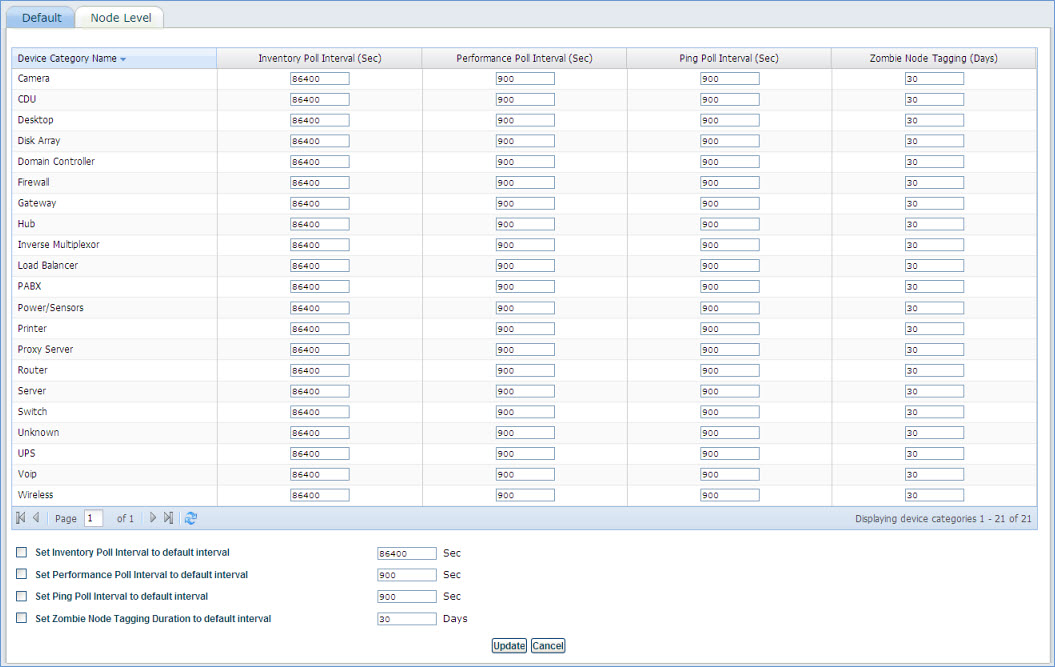
This tab provides an option to edit inventory data collection and performance monitoring polling interval for all device categories. Once the polling interval is defined, it applies to all newly detected devices. Each device category has a default value which is editable. The inventory polling interval can be set to a minimum value of 900 sec. and performance polling interval to a minimum value of 180 sec.
1. Edit the polling interval in the box against each device category in the ‘Inventory Poll Interval’ column and ‘Performance Poll Interval’ column
2. Use ‘Set inventory poll interval to default interval’ box to set the inventory poll interval time for all the device types.
3. Use ‘Set performance poll interval to default interval’ box to set the performance poll interval time for all the device types.
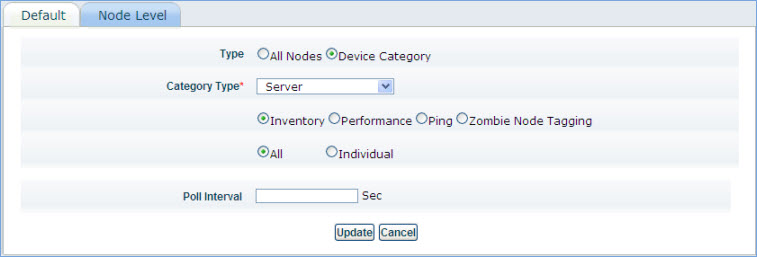
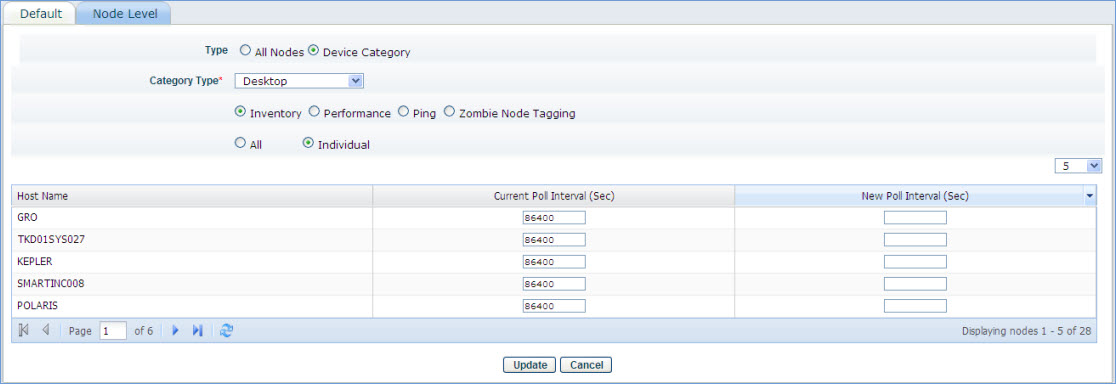
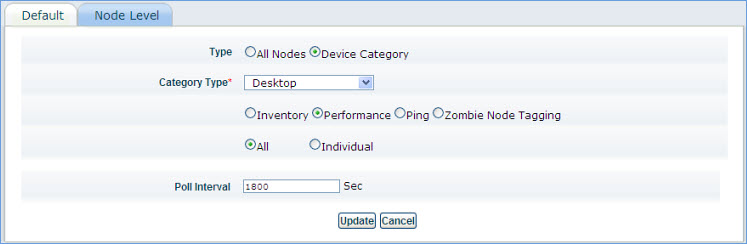
This tab can be used to set a common polling interval for all the nodes or different polling interval for individual nodes. All nodes include existing nodes connected in the network. Read the steps below to find out how to set node level poll interval.
Click on a below topic to view it in detail


 ’ to display ‘Performance Pollers’ window