
SapphireIMS provides easy to use diagnostic tools to diagnose network and connectivity problems.
To perform Ping, the following steps apply
Click the 'Settings' tab. In the 'Tools' section, click 'Ping'.
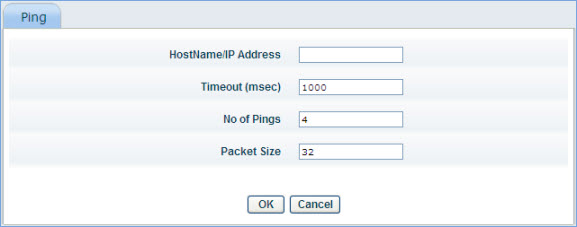
The Ping configuration screen is displayed as follows.
Host Name/ IP Address : Specify the destination host name or IP address
Timeout : Timeout value for the ping request; default is set to 1000 msec
No of Pings : Number of times a ping needs to be attempted; default is set to 4
Packet Size : Packet Size to be used for the ping; default size is set to 32
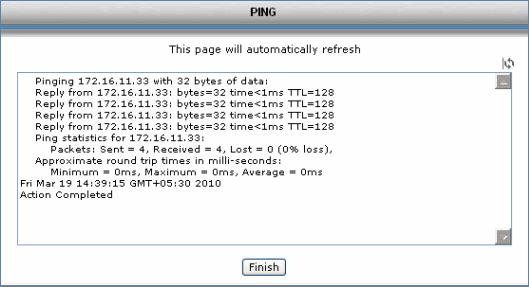
The Ping request is processed and the results are displayed. Click on ‘Finish’ to redirect to the Ping Configuration screen.
To perform Trace Route, the following steps apply
Click the 'Settings' tab. In the 'Tools' section, click 'Trace Route'
Host Name/ IP Address : Specify the destination host name or IP address
Timeout : Timeout value for the ping request; default is set to 1000 msec.
Max Hop Num : Max Hops to be counted; default is set to 30

The Trace Route request is processed and the results are displayed. Click on ‘Finish’ to redirect to the Trace Route Configuration screen
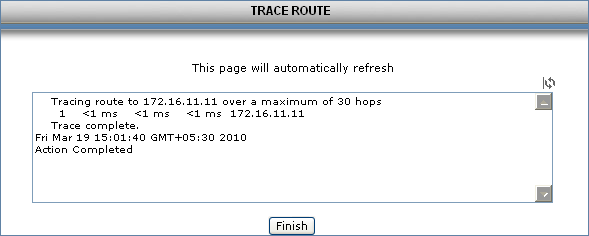
Trace Route Configuration screen
SapphireIMS provides an in-built tool for conducting an SNMP walk for any new device. This is needed to collect the MIB information. The tool supports SNMP v1, v2.c and v3.
Click on the 'Settings' tab. In the 'Tools' section, click 'SNMP Walk'. The SNMP Walk configuration screen is displayed.

The fields are described in the table below
|
Click on 'OK'. A request will be sent to the device. On receipt of the SNMP walk it will be displayed as shown below.
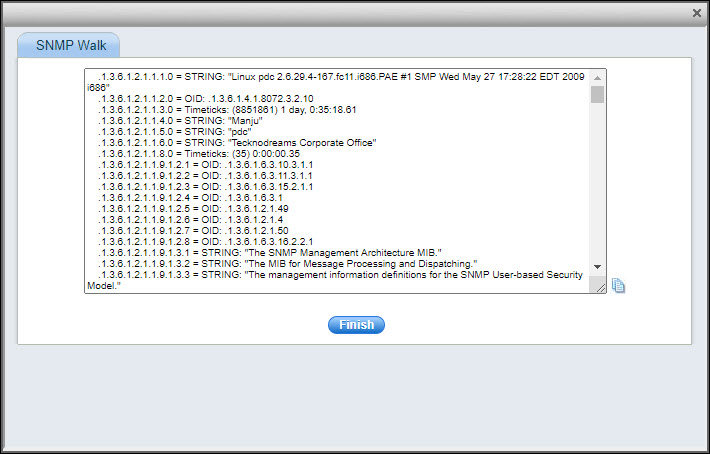
Click the ' ' icon
to copy the SNMP Walk results.
' icon
to copy the SNMP Walk results.
Click 'Finish' to close the window.