SapphireIMS allows you to install pre-defined packages i.e. packages created under ‘Package and Policy Management’.
1. Click the ‘Settings’ tab. In the‘Software Management’ section, click ‘Software Install’

2. Select the hosts where the software package has to be installed.
3. Select the discovery credential profile if the hosts are to be discovered
4. Click ‘Next’

5. Select the package to be installed.
6. Click ‘Next’
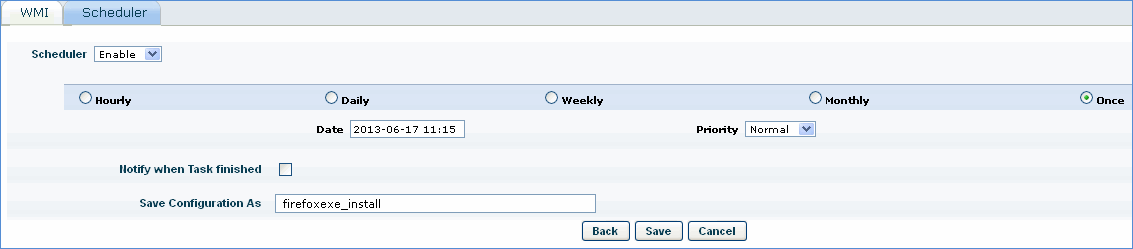
7. Select the schedule for the software package installation and notification rule.
8. Save the configuration.
Note: Status of the software package installation can be viewed under ‘Automation Task Status’
SapphireIMS allows you to uninstall MSI packages in discovered nodes.
1. Click ‘Settings’, from ‘Software Management’ section, click ‘Software Uninstall(MSI)’
OR
Click ‘IT Automation’ >>’Automation Tasks’>>’Software Management’ >>’Software Uninstall (MSI)
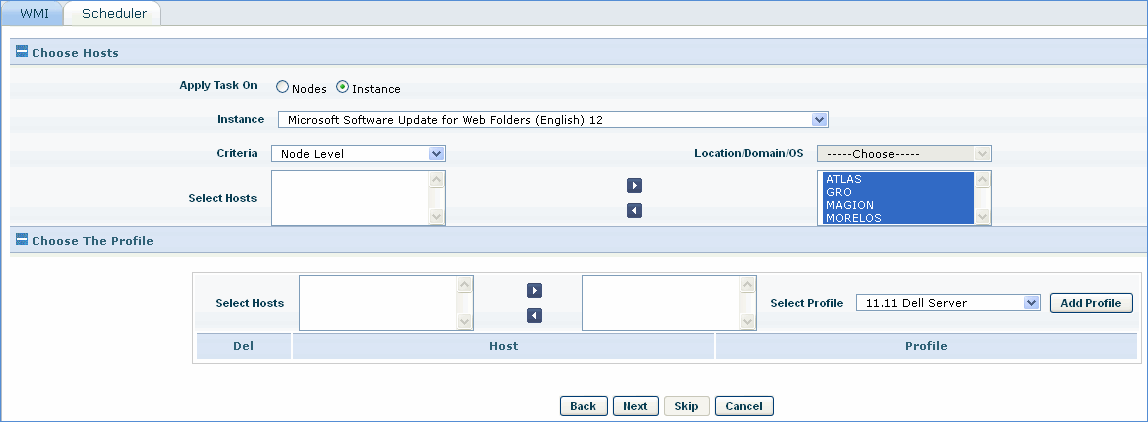
2. Select the hosts where the MSI software has to be uninstalled.
3. Select the discovery credential profile if the hosts are to be discovered
4. Click ‘Next’
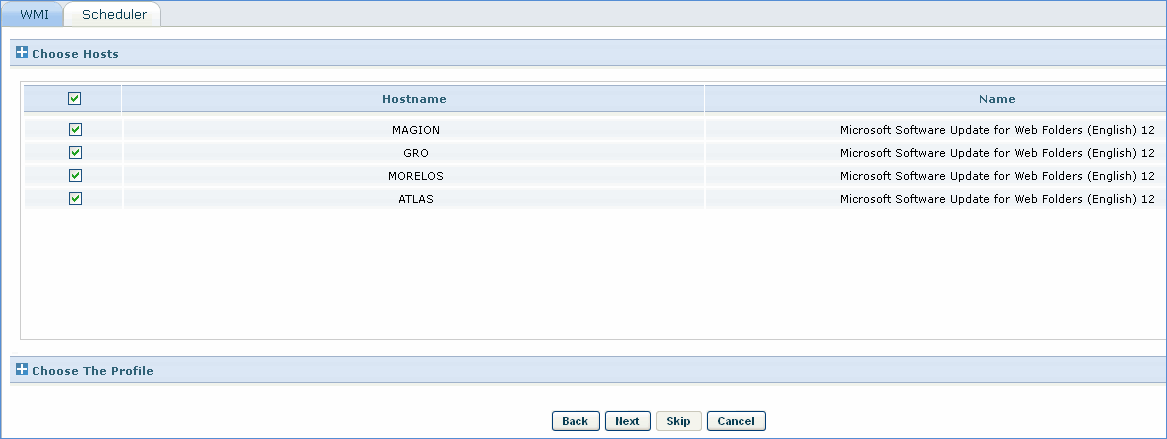
5. Select the software packages to be uninstalled.
6. Select the schedule and save the configuration.
SapphireIMS allows you to uninstall non – MSI packages as well. Currently un-installation of 15 non MSI packages for Windows operating systems is possible
To uninstall non – MSI packages, click IT Automation>Automation Tasks>Software Uninstall (Non MSI)
Select the nodes, non – MSI packages to be uninstalled and the schedule. Save the configuration.
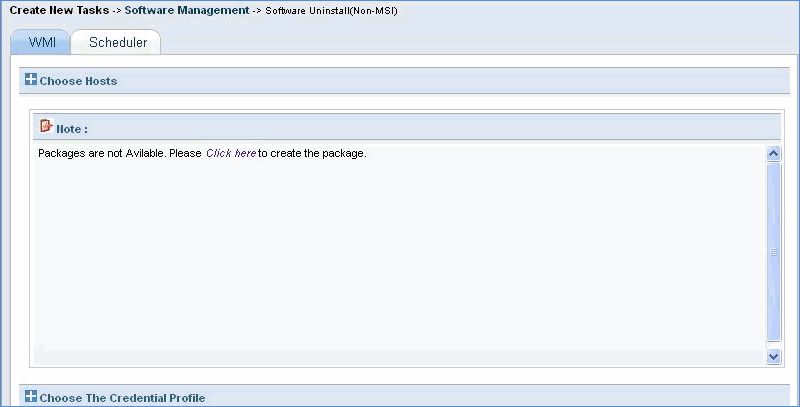
Note: If no package is available for this option, a link to create the package is displayed as shown in the following image.