Communicating with the user is essential for SapphireIMS as it helps in improving the application thereby benefiting the end-user himself.
Configure the feedback form by framing questions that are user friendly and capture the actual user experience with SapphireIMS service desk. Each of the questions should be brief and concise.
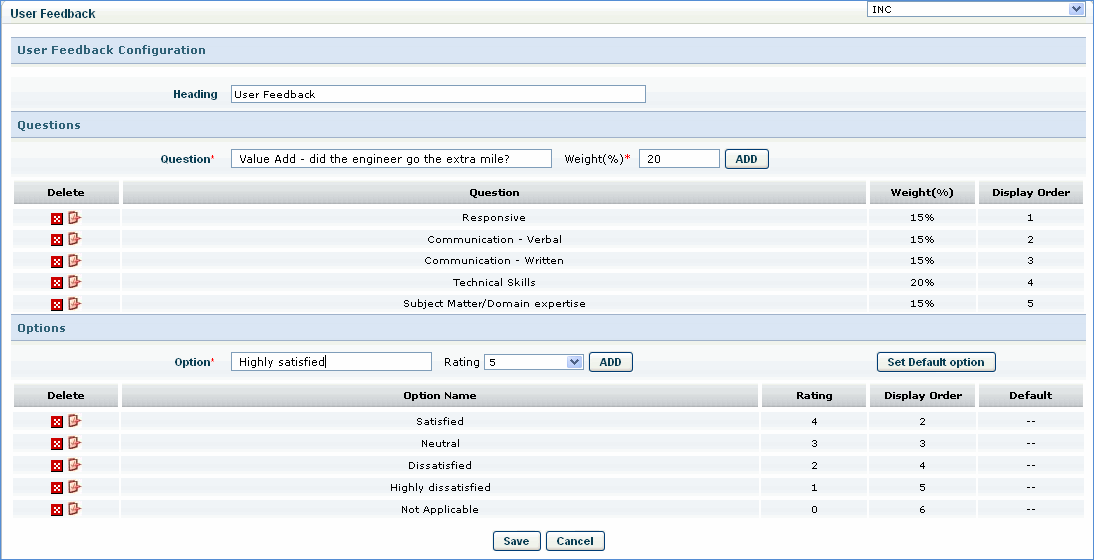
For every service desk record a user can give feedback by rating the response that he has received from the service desk. A project administrator can configure a set of questions and ratings as seen in the image below.
1. In the 'Settings' panel, click on the '+' sign to expand 'CSAT & Questionnaire'. Click 'User Feedback (CSAT)'
2. Type the title of the feedback form in 'Heading' text box
3. Type the question in the 'Question' text box, enter the weightage in 'Weight' text box and click 'ADD'
4. Repeat the previous step as many times as required
5. In the 'Option' text box enter the type of response you want to add for every question. Select the rating and click 'ADD'
6. Repeat the previous step for as many responses you want to add per question.
7. Click 'Save'
Note: A user will be
able to give feedback only if the end state for the respective project
is configured. Navigate to the 'States' screen and configure the end state
by clicking on  button
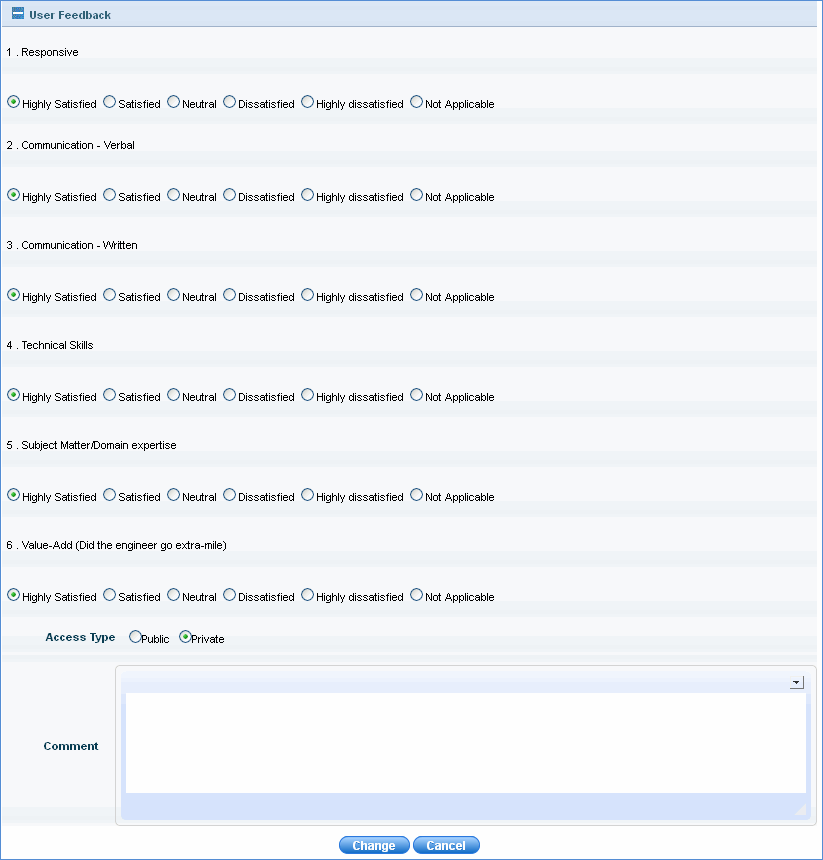
Feedback is taken while closing the service request. In the 'Change State' window click the '+' sign next to 'User Feedback' to expand the questions. Refer to the image below.
Click 'Change' to complete the process.
Steps to get user feedback notification mail
1. In the service desk project settings setting key value of 'Email based approval (url/mailto)' should be 0
2. Email notification rule should be configured, with e-mail template that contains the macro 'MACRO_STATE_CHANGE_OPERATIONS' in e-mail body. This macro is present by default in the e-mail template 'Approval By Replying to Email'
3. Workflow permission should be provided to the user for 'End' state.
Go to Project Settings > Workflow Management > Workflow

The user feedback mail is displayed as below
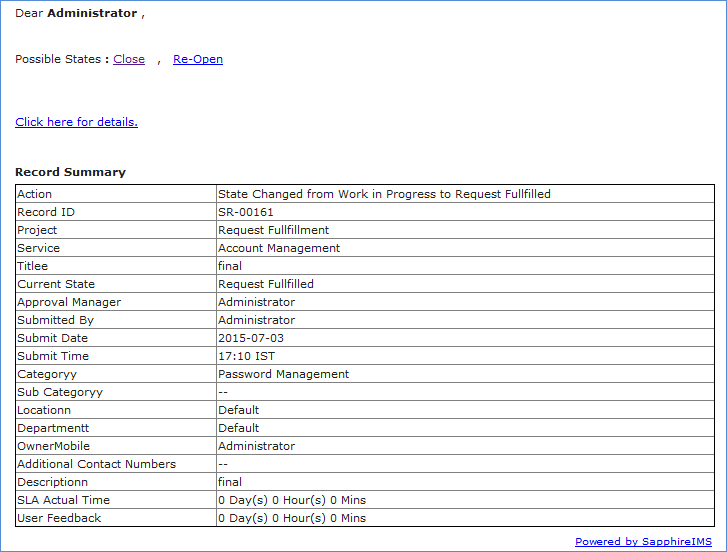
Since 'Close' is an end state, if we click the 'Close' link in the above screen shot, it will redirect to the login page as shown below.
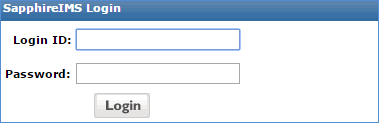
After you login, the 'Change State' page with the user feedback questionnaire as shown in Change State is displayed
Steps to get acknowledgement mail
1. Go to service desk project settings > Email and SMS Notifications > Email Templates. Select the e-mail template used for user feedback notification
2. In the 'Message Body' section, click the
Request Summary icon ' ' and check the 'User Feedback'
check box.
' and check the 'User Feedback'
check box.
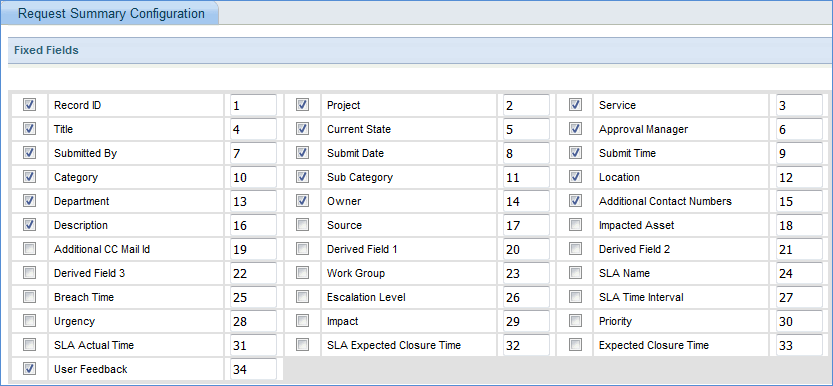
3. Next, go to Email Notification Rules and check the 'User Feedback' check box for the selected e-mail notification template as shown below:
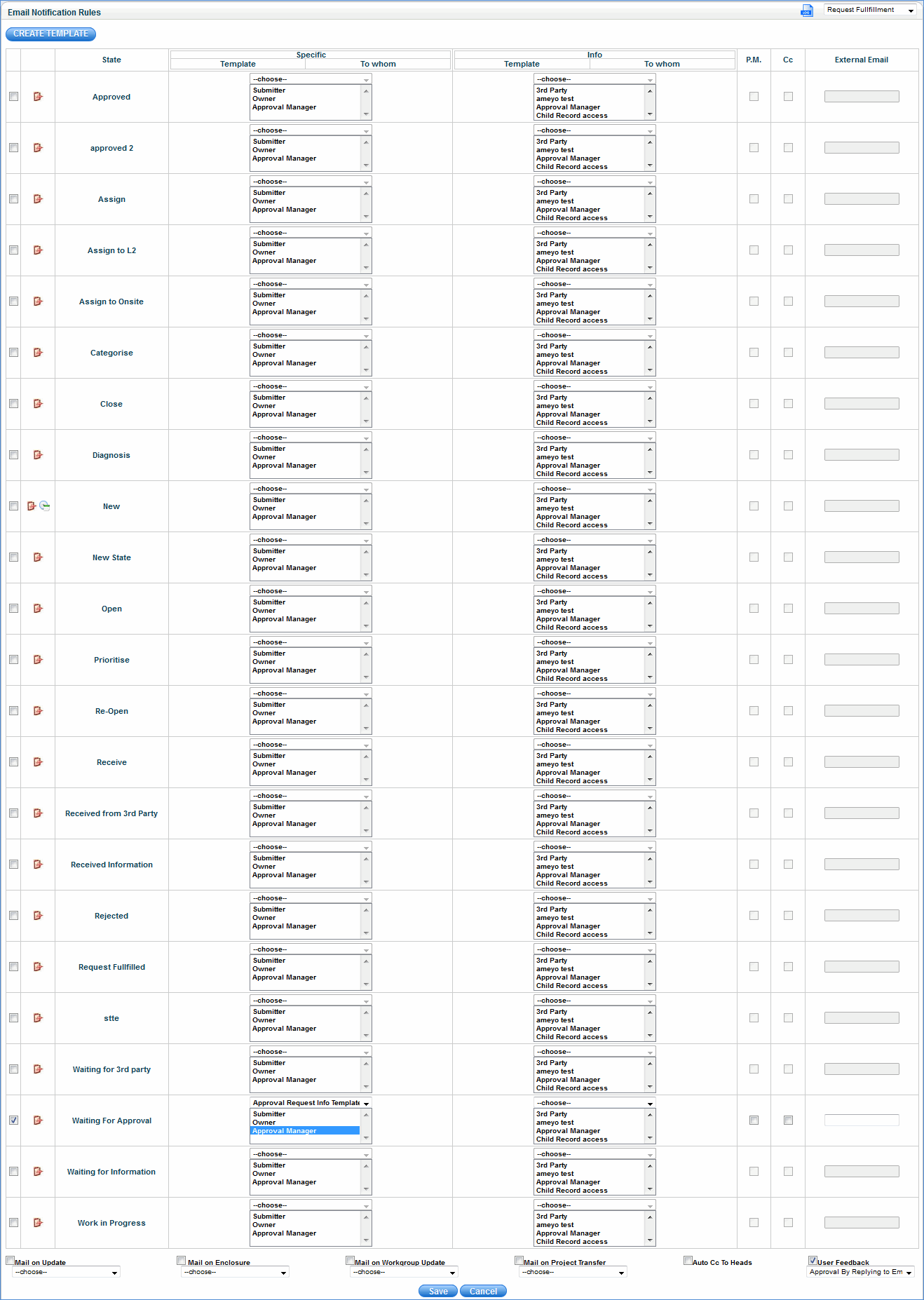
Acknowledgement mail is sent only if the below three conditions are satisfied:
a) The particular state should be 'End' state
b) 'Capture feedback from user' setting key should be 1
c) 'Acknowledgement mail after User Feedback' setting key should be 1
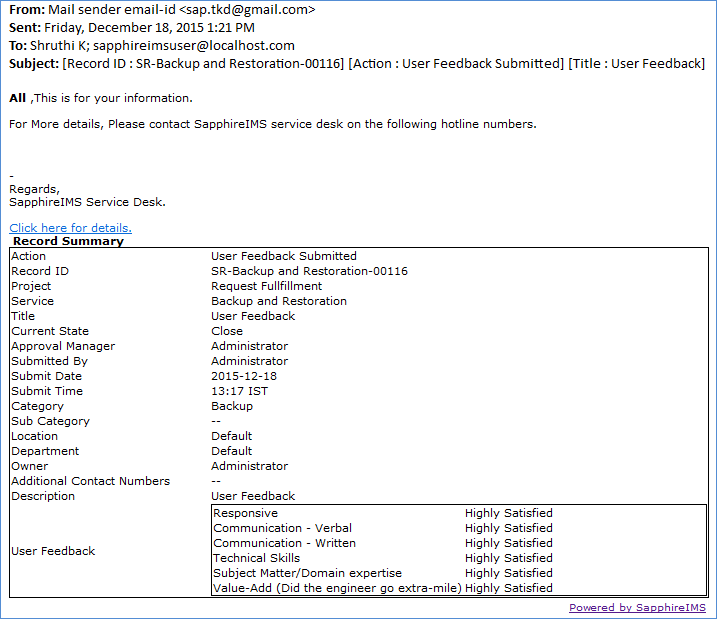
Once the state is changed to End state, acknowledgement mail is sent to all technicians if the acknowledgement mail feature is configured as specified above.