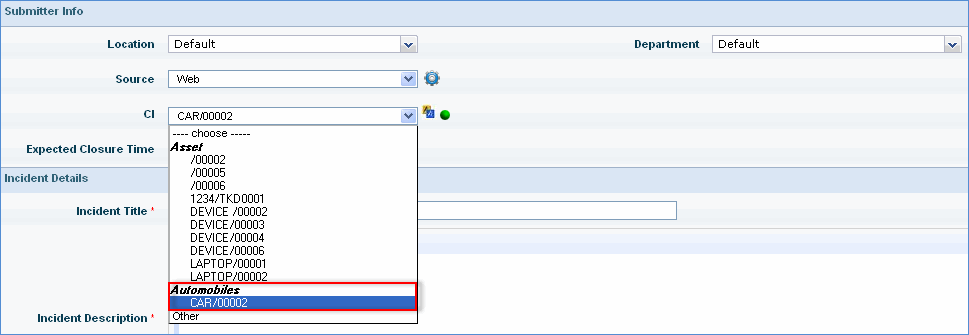
An asset type is defined by assets. So, assets have to be added for custom asset types. Hence, the next step after adding an asset type is to add an asset.
To add a custom asset, in the asset settings panel, click 'CI Types and Attributes'. Click 'Add'.
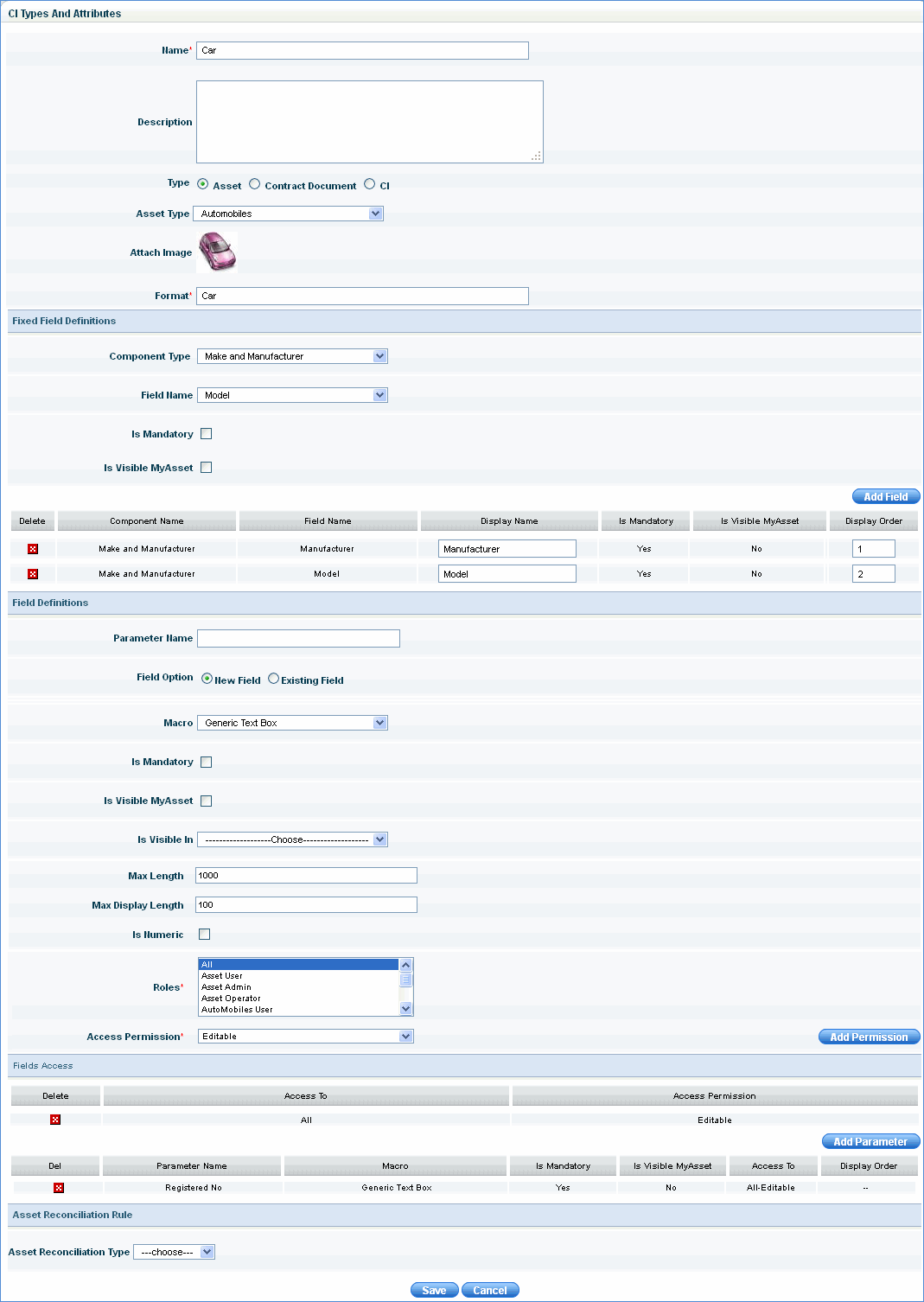
Enter the 'Name' and 'Description' of the asset
Select 'Type' option as Asset. Currently custom asset types can be created only for 'Asset' and not for 'Contract Document' or 'CI' option.
Select the Asset Type for which the asset has to be added
Upload an image of the asset and specify the format of the asset
Select the 'Component Type' from the list
Select the 'Field Name ' from the list
Check 'Is Mandatory' box if it is mandatory for the user has to enter a value for the field in 'Asset Management'
Check 'Is Visible MyAsset' if the asset has to be visible in the 'My Asset' tab.
Click 'Add Field' to add the fixed field.
Enter the name of the additional field.
Select the field option. If it is an existing field, select 'Asset Type' and 'Asset Fields'
Select the macro from the list. Depending on the macro selected, provide details about the additional field.
Select the roles
Select the access permission
Click 'Add Permission'
Click 'Add Parameter'
Click 'Save' to save the asset details
Note: You can now click CMDB menu > Automobiles > Automobiles Management to add assets under Automobiles. Refer to Asset Management
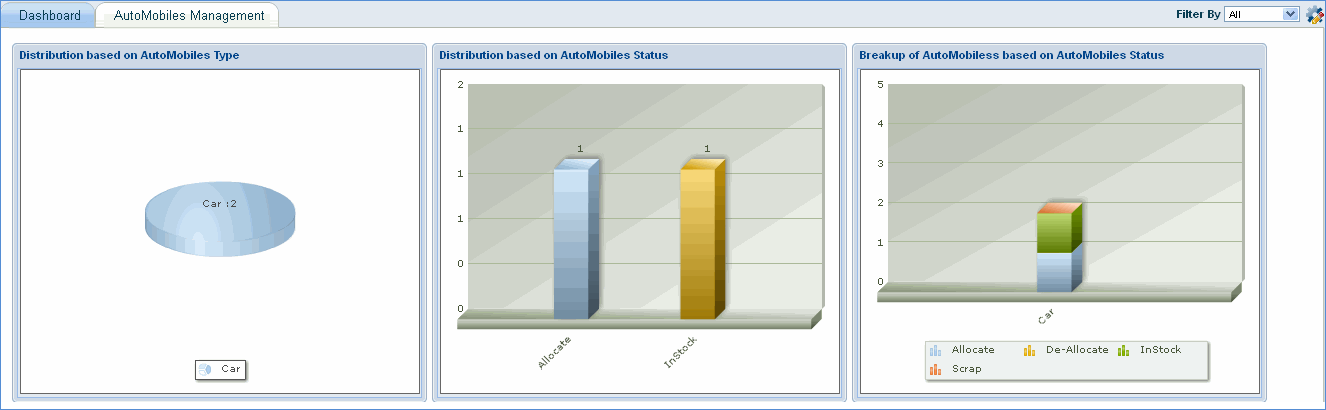
Once custom assets are added for a particular asset type, they will be visible in the asset dashboard as follows.
Note: The asset types created will also appear in the CMDB menu in service desk and can be selected for ITSM incident/problem/service request/change management.