Creating Custom Reports


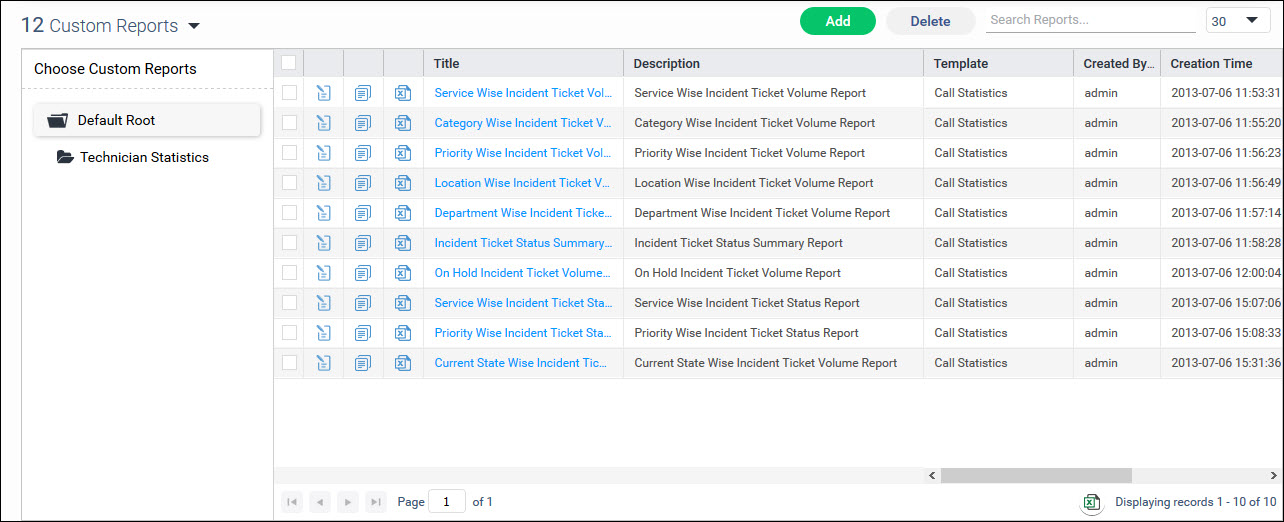
SapphireIMS allows you to design customized reports in case the in-built reports do not meet the needs. The custom reports can be created fresh or an existing in-built report can be copied and modified.


SD-Reports-CustomRptList.jpg

Adding Custom Reports

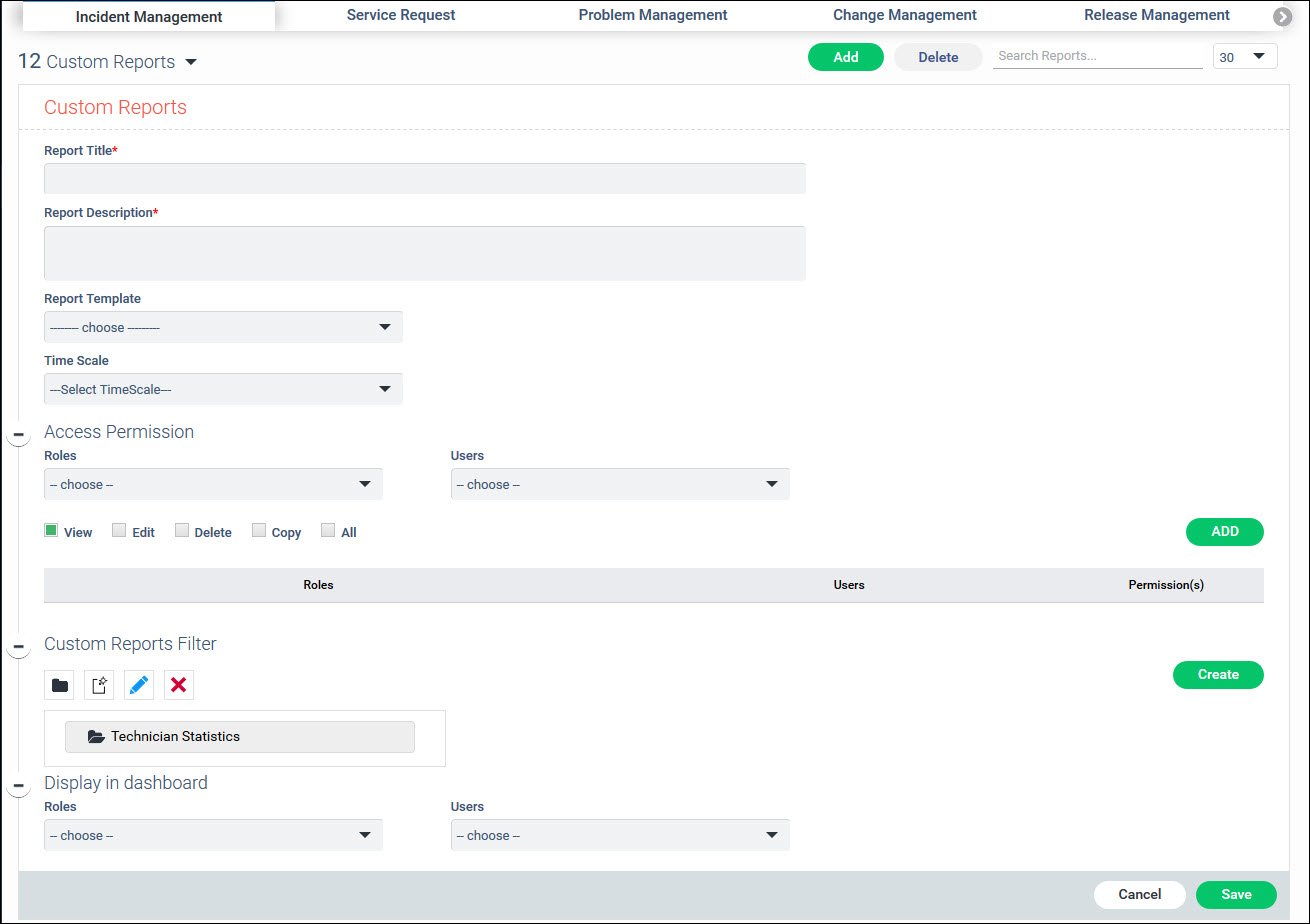
SD-Reports-AddCustomReport.jpg


Serial No

Field Name

Description

        1

Project

Select the project for which the report is required.

        2

Report Title

Enter the title for the report.

        3

Report Description

Provide a brief description of the report.

        4

Report Template

The list of Report Templates available are displayed in the drop-down. Select the report template which will be used . Based on the template that is selected additional input parameters will be prompted for the  report generation.

Note.gifNote: If you have a reporting requirement outside of the templates provided, please contact SapphireIMS Support.

Call Statistics – Select this template if a report of total records needs to be displayed for a particular service desk parameter.

Level One Filter: The field chosen will be displayed as one of the columns in the report and filtered based on the selected values.

Level Two Filter: The field chosen will be displayed as one of the columns in the report and filtered based on the selected values.

Level Three Filter: The results will be filtered based on the fields selected here.


Call Analysis - This report displays the call analysis with the following columns:

  • Calls Logged: No of calls logged in the time period

  • Opening Balance: No of calls pending from the previous time period

  • Calls Closed --> No of calls closed in the current time period

  • Closing Balance --> No of calls pending at the end of the current time period

Level One and Level Two filters appear as columns and the report is filtered based on the selected values. Level Three filter is applied on the result and further filtering is done.

While viewing the report you select the display type as follows

    • Click on SD-Reports-CustomTimeBasedIcon.jpgto get a Time based report where the time interval is fixed (hourly, daily, monthly etc.)

    • Click on SD-Reports-CustomCumulativeIcon.jpgto get the cumulative report (default)

You can also select a time period for the report, including a custom time period for which you can specify the start and end.

Attendance Report - This is a summary report template which displays the Log-in and Log-out times for all or selected users along with the duration and provides the total logged-in hours in a selected period. While creating the report you can specify the time period and the users

Average Response/Resolution Time for SLA - This is a summary report template which displays the average response and resolution SLA timings over a selected period of time.

Call Summary – This template displays the values of the selected service desk parameters in the columns in a tabular format.

Note.gifNote: For the 'Call Statistics' and the 'Call Summary' reports, SapphireIMS provides a 'Context Filter' to select records based on the filter criteria matching the logged-in user. This filter consists of the fields ‘Submitted By’, ‘Owner’, ‘Approval Manager’, 'Location' and 'Department'.  The report is displayed in the logged in user's 'My Dashboards' service desk home page with tickets where the logged in user satisfies the context filter condition. For example, if the logged in user's location is Bangalore, and context filter 'Location' is selected, the report is displayed showing only those tickets where the location of the Submitter is Bangalore.

The 'Generate On' field is used with the time period selection to select ‘Last Modified Time’,  ‘Submitted Time’ or 'Expected Closure Time' as the times to be used for the time period.

Overall SLA Performance - This template displays the total number of calls in the selected time period, the number of calls complying and number of calls not complying to SLA in that period and the SLA compliance for that period as a percentage.

Query Builder Report - This report template is generic and any query or procedure can be provided which is internally called to generate the report and display.

Note.gifNote: To develop custom queries, knowledge of SapphireIMS database is required. Please contact SapphireIMS support for custom reports.

Service Downtime Report - This report displays the allowed service downtimes for each SLA parameter, the average downtime for the period being reported and the percentage achieved.

SLA Performance against Engineer - This report is similar to the Overall SLA Performance report with the addition that the reporting is for each of the service desk engineers.

Trend Analysis - This report displays the trend of any selected service desk parameter over a time period.

Pareto Analysis - This report gives the root cause based on Pareto Analysis which is a type of reporting based on 80-20 rule i.e. 80% defects are caused by which 20% of consequences/causes. From this analysis, if we focus on 20% of the causes we would be able to address 80% of the issues/defects.

       5

Time scale

The time scale for which the report needs to be generated. It can be ‘Built In’ or ‘Custom

Note.gifNote: Define the global settings variable 'Starting month of calendar year' to populate the 'Time Scale' drop down with quarters

       6

Access Permission

Select the access type for the roles/users which need to be granted for this report. Multiple access types can be selected. You can select role(s) and user(s) from the drop down. Click against each of the access permissions to be given for the report (View/Edit/Delete/Copy/All). Click ‘Add Access’.

       7

Custom Reports Filter

The reports hierarchy is displayed.

  • Select the node under which the newly added report should be included.

  • If a new node is to be created, click on SD-Reports-CustomCrtNodIcon.jpg.  If this is the first node, click on 'Create' button.

  • If a new leaf is to be created, click on SD-Reports-CustomCrtLefIcon.jpg.

  • Click on SD-Reports-CustomEditIcon.jpg to edit the name of the node or leaf.

  • Click on SD-Reports-CustomDelIcon.jpg to delete a node or leaf.

       8

Display in Dashboard

Any custom report can also be included in the Dashboard for selected roles/users. Select the Roles and Users for whom the report needs to be displayed as part of the dashboard.

Note.gifNote: The report will be available to the users for displaying in their dashboards and they could still disable this in their Dashboard Settings.


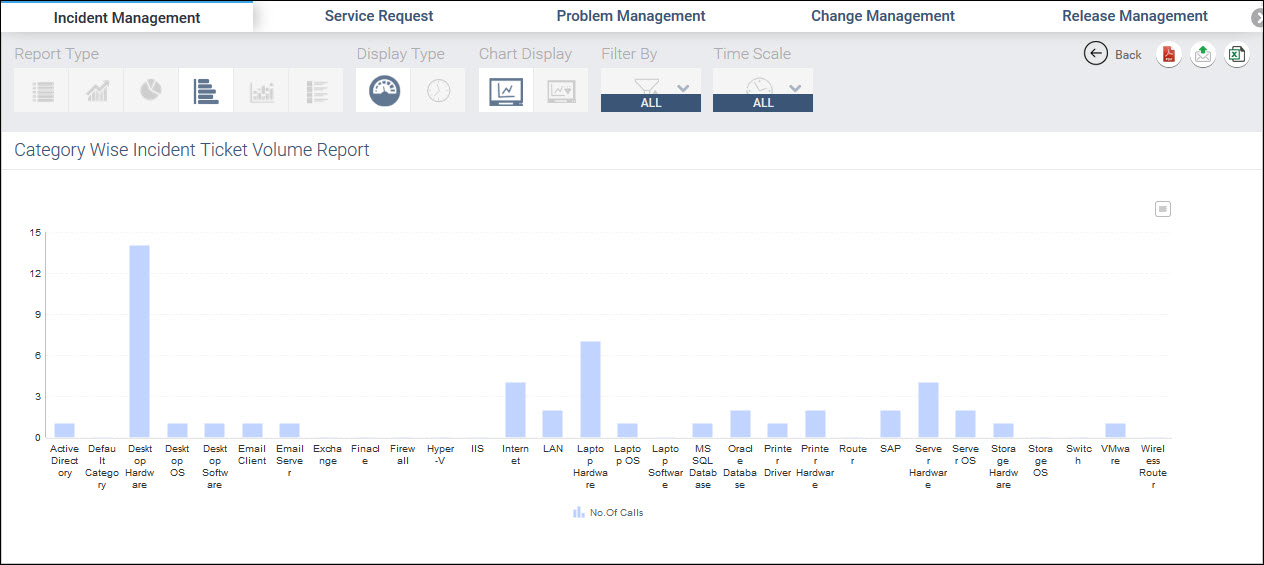
Viewing Custom Reports

SD-Reports-CustomRptView.jpg


Refer to the topic In-built Reports for details on the report types.


Deleting a Custom Report


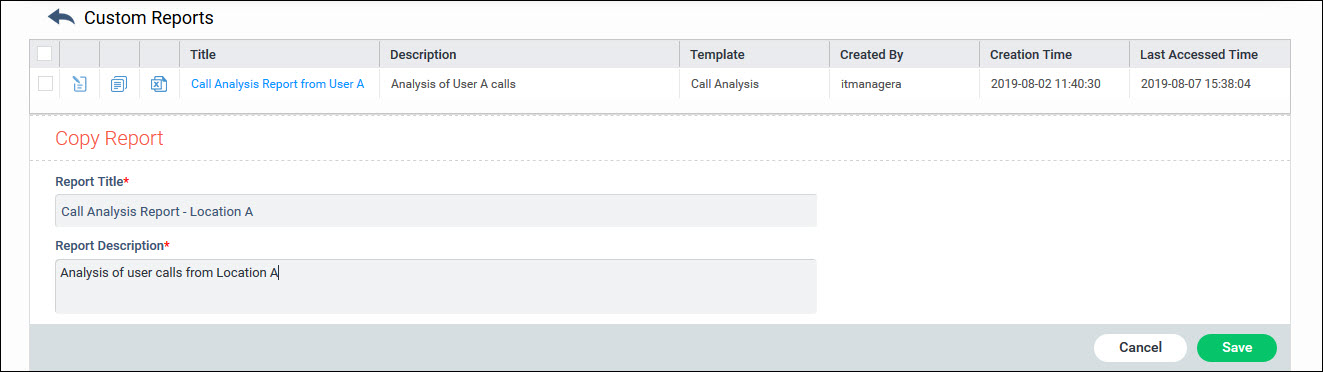
Copying an existing report template

SD-Reports-CopyReport.jpg