Custom Inventory
File System Trawl
SapphireIMS supports file system trawl for
both Windows and Unix operating systems. Details of all executables are
returned with the provision to specify the types of files that are audited
(via a wildcard or regexp).
1.Click the 'Settings'
tab. In the 'Asset and Inventory Management'
section, click 'Custom Inventory'
2. Click 'File
Trawl' tab. Click 'Add'
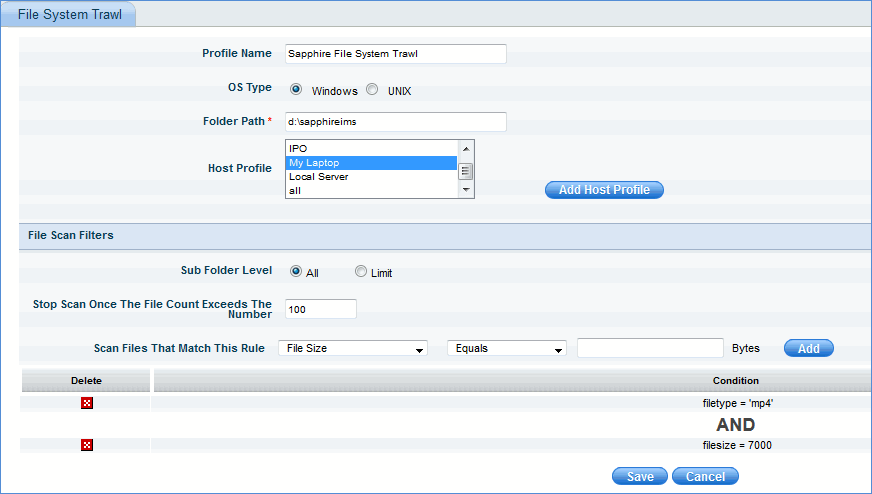
Sr.
No |
Field Name |
Description
|
1 |
Profile
Name |
Enter the
name of the 'File System Trawl' configuration
|
2 |
OS
Type |
Select
the OS for which the host profile is applicable
|
3 |
Folder
Path |
Enter the
path of the folder which has to be trawled
|
4 |
Host
Profile |
Select
the host profile from the list or add host profile with host profile
name and criteria for selecting nodes
|
File
Scan Filters |
1 |
Sub
Folder Level |
Select
'All' for details of all sub folders to be returned or select
'Limit' to specify the sub folder limit to be trawled
 Note: Sub folder limit is not
supported in Solaris OS file system trawl Note: Sub folder limit is not
supported in Solaris OS file system trawl
|
2 |
Stop
scan once the file count exceeds the number |
Enter the
number at which the file scan has to stop |
3 |
Scan
files that match this rule |
Select
the rule for scanning files |
|
The details of the files scanned can be accessed
in the 'Discovery' module > Custom Inventory tab. See Summary,Hardware,Software,Resource,Custom
Inventory and Automation Tasks
Notes:
1. 'File System Trawl' operation can be scheduled as an on-demand automation
job. In the Custom Inventory - File System Trawl listing page, check the
file system trawl configuration to be posted and click the 'On Demand'
button
2. The file trawl will
not work if size configured is not in bytes. The WMI query does not accept
exponential values. If the file size is in MB or GB, convert it into bytes
and provide the respective number.
Custom Registry
SapphireIMS provides a facility to query
the registry tree or the registry key value pair that needs to be fetched
from the target system.
1.Click 'Settings',
from 'Asset and Inventory Management'
section, click 'Custom Inventory'
2. Click 'Custom
Registry' tab. Click 'Add'
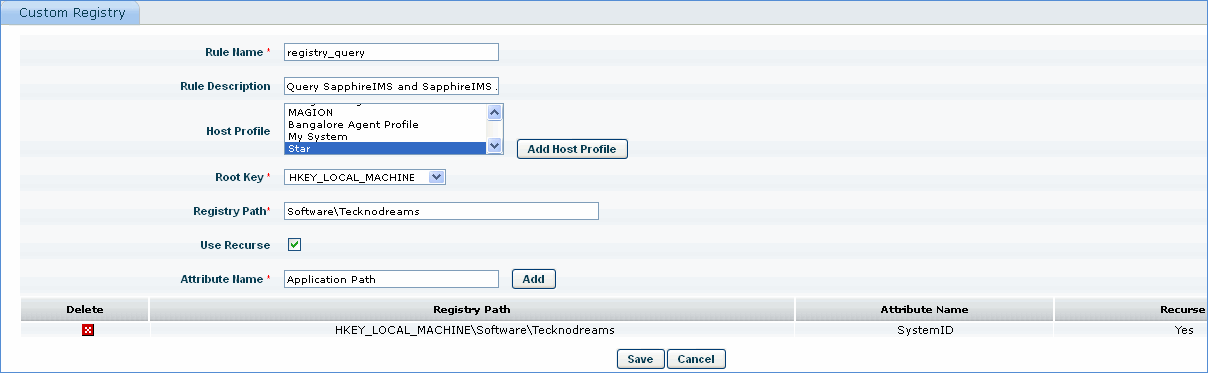
Sr.
No |
Field Name |
Description
|
1 |
Rule
Name |
Enter the
name of the 'Custom Registry Query' configuration
|
2 |
Rule
Description |
Describe
the registry variables queried
|
3 |
Host
Profile |
Select
the host profile from the list or add host profile with host profile
name and criteria for selecting nodes
|
4 |
Root
Key |
Select
the registry root key from the drop down
|
5 |
Registry
Path |
Enter the
path in the registry that defines the location of the key from
the selected root key. Items must be separated with a backslash
(\), and each item between back slashes represents a level
in the tree hierarchy of the registry (as viewed in the registry
editor).
|
6 |
Use
Recurse |
Enabled
: Search each of the sub keys recursively from the configured
registry path for value.
Disabled : Search in the configured registry path for value.
|
7 |
Attribute
Name |
The search
string to be scanned in the configured registry path
|
|
The details of the registry query can be
accessed in the 'Discovery' module > Custom Inventory tab. See Summary,Hardware,Software,Resource,Custom
Inventory and Automation Tasks
Notes: 1. The Windows
Update status details are collected as part of standard inventory data
collection using a built-in custom registry scan rule in custom inventory.
This data will help to identify if automatic Windows update is enabled
or not in the Windows systems.
2. In case of MSP edition,
a drop down box for 'Site' selection is visible in the 'Custom Registry'
listing page.

Custom WMI Items
SapphireIMS provides
a facility to configure the WMI classes to get the WMI class attributes.
1. Click 'Settings',
from 'Asset and Inventory Management'
section, click 'Custom Inventory'
2. Click 'Custom
WMI Items' tab. Click 'Add'
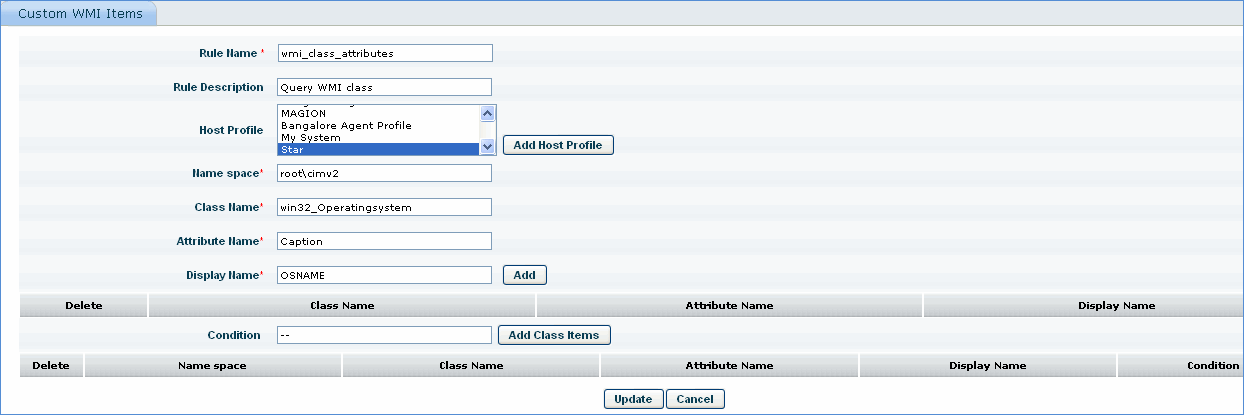
Sr.
No |
Field Name |
Description
|
1 |
Rule
Name |
Enter the
name of the 'WMI Class Query' configuration
|
2 |
Rule
Description |
Describe
the WMI class query configuration
|
3 |
Host
Profile |
Select
the host profile from the list or add host profile with host profile
name and criteria for selecting nodes
|
4 |
Name
Space |
Specify
the name space. Example : root\cimv2
|
5 |
Class
Name |
Specify
the class name. Example : Win32_NetworkAdapterConfiguration or
win32_Operatingsystem
|
6 |
Attribute
Name |
Specify
the attribute name. Example : ServiceName or Caption
|
7 |
Display
Name |
Specify
the display name. Example : ServiceName or OSNAME. Click 'Add'
to add the rule
|
8 |
Condition |
Specify
the condition. Example : IPEnabled = 1 or '--' for no condition.
Click 'Add Class Items' to add the condition
expression for the WMI class. Click
'Save' or 'Update' button to save the configuration
|
|
The details of the WMI
class query can be accessed in the 'Discovery' module > Custom Inventory
tab. See Summary,Hardware,Software,Resource,Custom
Inventory and Automation Tasks
Note: In case of MSP
edition, a drop down box for 'Site' selection is visible in the 'Custom
WMI' listing page.
Database Inventory
SapphireIMS provides an option to query databases
like Oracle and MSSQL to present database related software inventory details
1. Click 'Settings',
from 'Asset and Inventory Management'
section, click 'Custom Inventory'
2. Click 'Database
Inventory' tab. Click 'Add'
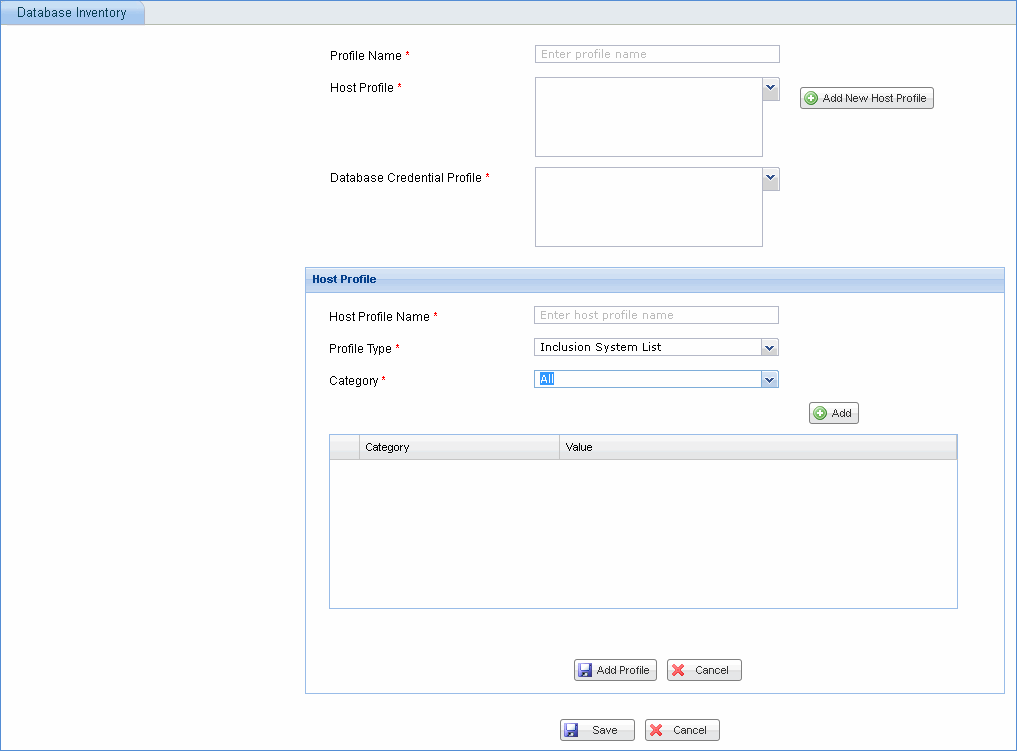
Sr.
No |
Field Name |
Description
|
1 |
Profile
Name |
Enter the
profile name of the 'Database Inventory' configuration
|
2 |
Host
Profile |
Select
the host profile from the list or click 'Add New Host Profile'
to 'add a new host profile with host profile name and category
for selecting nodes
|
3 |
Database
Credential Profile
|
Specify
the database credential profile to map the database inventory
profile with the database.
Note:
To create the database credential
profile, go to Settings > Asset and Inventory Management >
Profile Manager. See below for details on adding credential profile
for applications
|
4
|
Save |
Click 'Save' to save the database credential
profile. To view the database inventory collected, on the SapphireIMS
menu, point to 'Inventory'
and click 'Discovery'.
Select the host and click the 'Software'
tab
|
|
1. Click 'Settings',
from 'Asset and Inventory Management'
section, click 'Profile Manager'
2. Click 'Add'
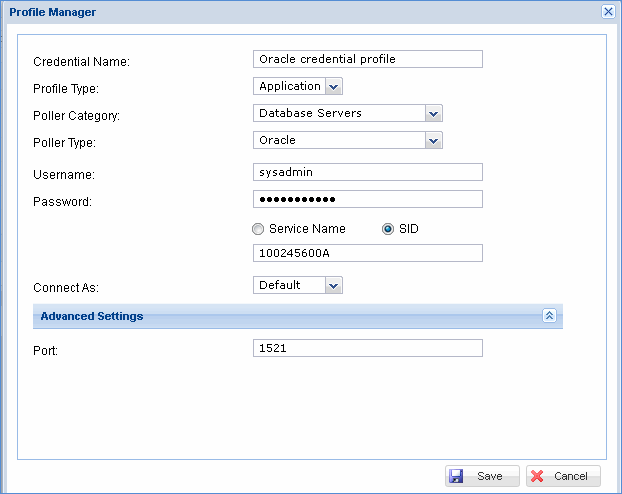
3. Enter the credential name to be associated
with the credential profile
4. Select 'Profile Type' as Application
5. Select 'Poller Category' as Database Servers
6. Select 'Poller Type' as Oracle or MSSQL
as currently these are the only two databases supported for database
inventory query
7. User name and password: Enter the credentials
to connect to the database and select 'Service Name' option or 'SID' option
in case of Oracle database. Enter the corresponding service name or SID
8. Select the corresponding mode of connection
to the database
9. Enter the corresponding port if
necessary which will be used to connect to the database.
