
Custom Views allow you to define profiles for custom search.
In the 'Settings' panel, click on the '+' sign to expand 'General Settings'. Click on 'Custom Views'.The predefined custom views are 'All New Incidents/Problems/Requests/Changes' , 'All Closed Incidents/Problems/Requests/Changes' and 'All Assigned Incidents/Problems/Requests/Changes' based on the project selected.
Note: Custom Views can also be added for workgroup profiles.
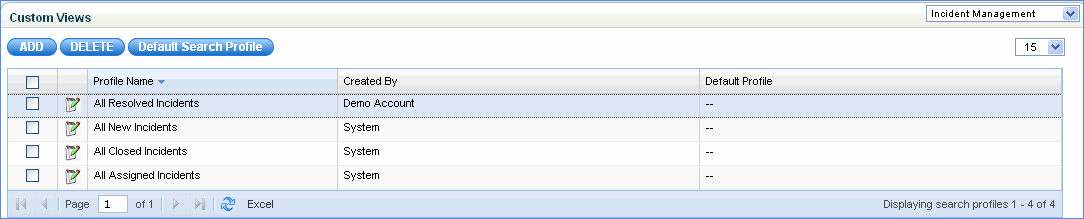
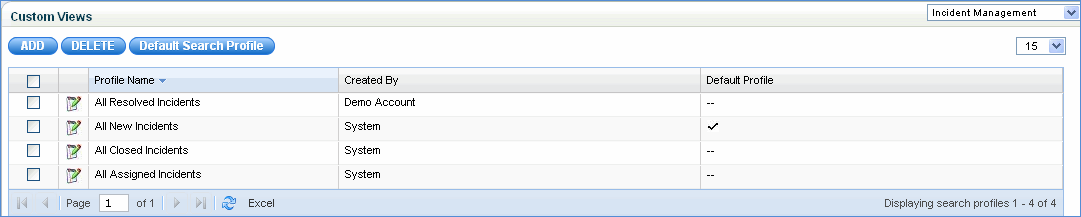
Click the 'Default Search Profile' button and select a search profile to make it as default. When you make a search profile as default, the search profile is applied to the request listing page when you login (in this case 'All Incidents' and 'My Incidents' tab). The search profile selected as default will have a tick mark in the 'Default Profile' column as shown below.
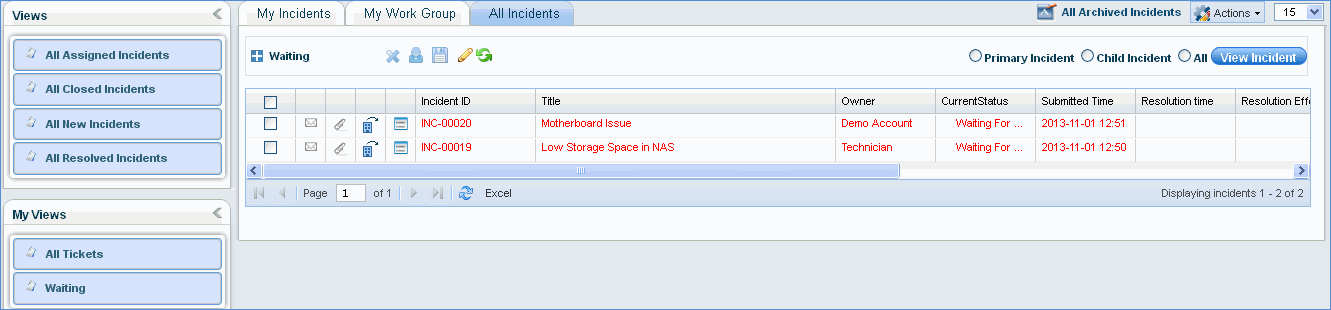
To change the profile or view other
requests, click the ' ' to expand the custom
views listing as shown below. Click on a custom view of your
choice.
' to expand the custom
views listing as shown below. Click on a custom view of your
choice.
Click here to view information on My Views
Click ‘Add’ to create a new search profile

1. Enter the Profile Name and Profile Description
2. Select the fields to appear in the search profile
3. Select the type of request
3. Select the state of the request
4. If required, select 'Submitted By', 'Owner', 'Approval Manager' of the requests in the search profile
5. Select 'Service', 'Sub Category', 'Location', 'Department', 'SLA' fields of the request
6. Select the 'List By' option for viewing requests and select the corresponding modification time.
7. Select custom fields or derived fields, criteria and enter the value in the 'Search' text box. Click 'Add' to add the custom fields profile.
8. Click 'Save' to save the custom view profile