
SapphireIMS allows for automatic archival of records when they reach the end of the workflow. Archived records are visible under the Archived Records listing screen. Refer Service Desk->Service Desk Common Features->Viewing Archived Records for details on viewing archived records.
Records can be archived after a fixed period or a time period specified for archival. Further exception criteria can be defined where records meeting the criteria are excluded for archival.
Select 'General Settings' option on the right hand side panel.
Click on 'Data Archive Configuration'. The Data Archive Configuration screen is displayed.
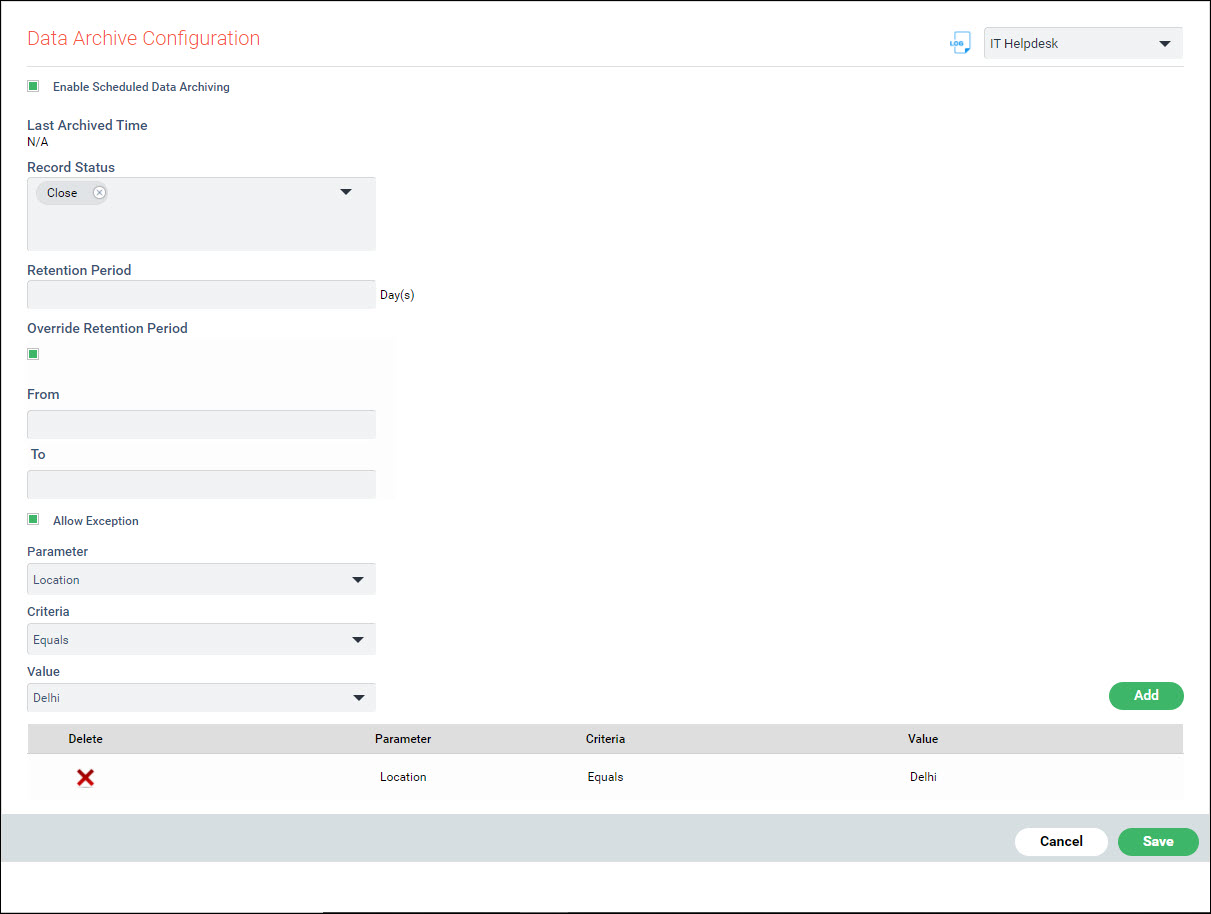
Click on 'Enable Scheduled Data Archiving' to enable the Data Archival Scheduling.
Select the 'Record Status' states which are used for determining the records which need to be archived. By default records are archived after reaching the Closed state.
Enter the 'Retention Period' after which the records are moved to Archival.
Alternatively you can check on 'Override Retention Period' to enter a 'From' and 'To' times, where all records falling in this time period are archived.
Click on 'Allow Exception'
to specify criteria where if the record matches the criteria, it is
excluded from archival. Select a 'Parameter',
'Criteria' and 'Value'
to specify the criteria. Click on 'Add'.
Repeat the steps to add additional criteria. Click on  to delete a criteria.
Click on 'Save' to save all the changes.