
Thresholds are the key parameters, which help to classify whether a collected monitoring parameter should be in alarm state, or not. Thresholds can be defined for any of the collected parameter. To define a threshold from the performance view, perform the following steps.
1. Select ‘Performance’ then click ‘Server View’. In the ‘List View tab click the host for which threshold has to be defined. The details of the device will be displayed.
2. Select the monitoring parameter for which the threshold needs to be defined. (Disk/CPU etc)
3. On the top-left corner of each graph click the ‘ ’ icon. The threshold window will be displayed.
4. Enter the threshold details in the window and click ‘Save’ button.
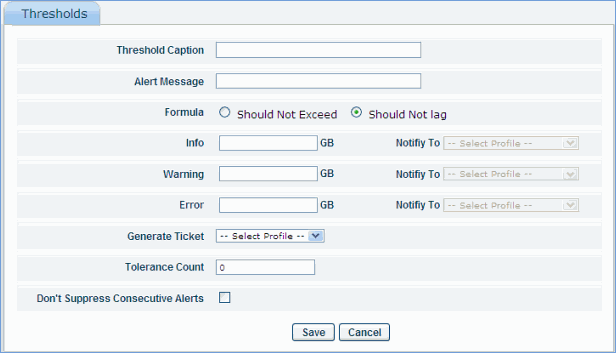
Defining Threshold
|
 Note: Thresholds can be defined for all the views in a way similar to ‘Server View’ as explained above
Threshold and alarm notifications are explained in detail the chapter ‘Fault Management’. Threshold defined through this screen will be applicable for the device/ instance/statistic that is viewed in the chart (for instance for the device demo/ for instances C:, D:, E: and for the statistic disk utilization)
For defining the thresholds globally (applicable for all the resources) click ‘Settings’ then from the ‘Log Monitoring and Fault Management’ section click ‘Built-in Thresholds’ option. This is discussed in detail in ‘Fault Management’ chapter
Notification profiles can be defined using the ‘Settings’ then ‘Log Monitoring and Fault Management’ and then 'Notification Profiles’
[ Home | Top of page | Previous Page | Next Page ]