
SapphireIMS has a rich set of in-built reports which are commonly used within IT organizations.
Select the 'In-built' reports option in the 'Report' drop down list.

The filter lists the various categories with the number of reports against each from which you can select a category.
You can search for a specific report and click on it. The report gets generated and is displayed.
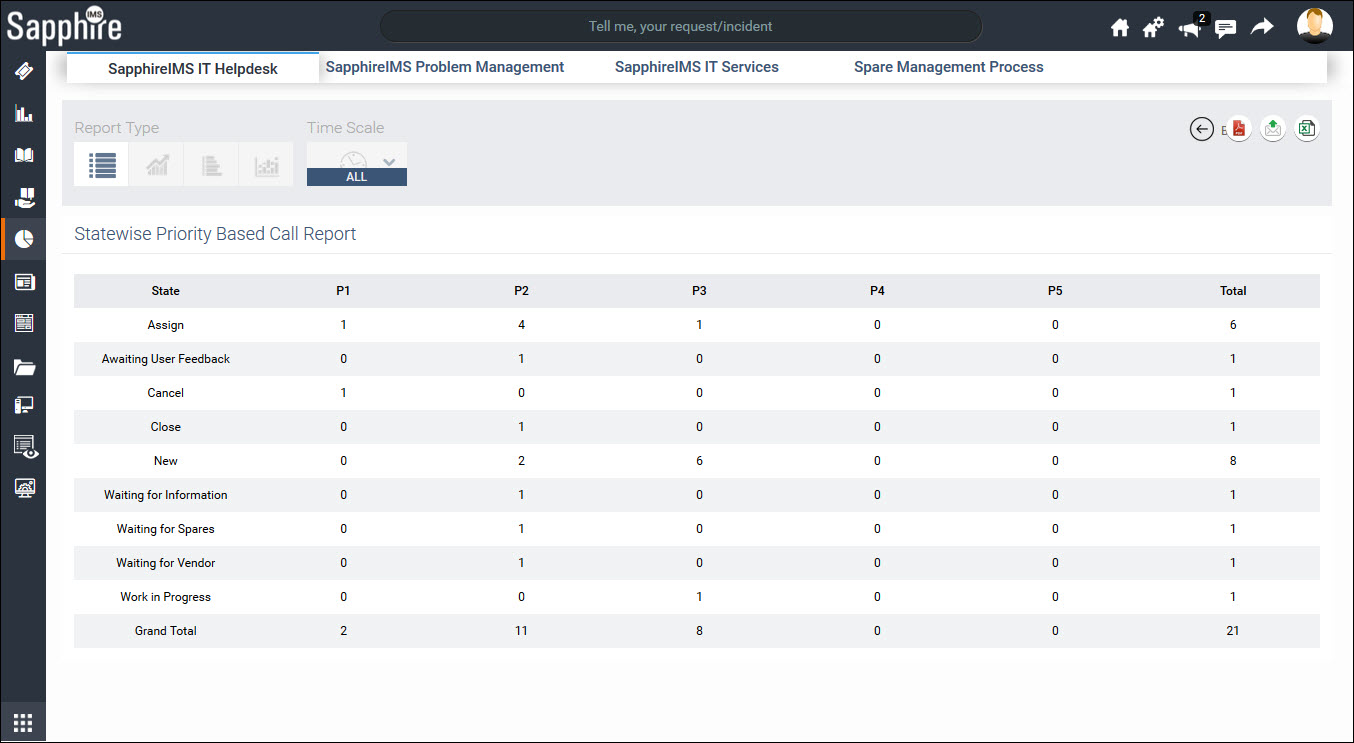
There are various report types supported in SapphireIMS including
Summary (Tabular format)
Trend
Bar
Stacked Bar
Each of the report types is described in later sections.
Any report can be exported in a PDF file (Export to PDF) or E-mailed (Email this report) to specified recipients.
On selecting a report, by default the Summary type is displayed. This is in a tabular format.
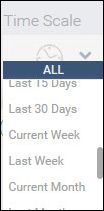
You can select the time scale for the report (by default it is ALL) from the drop-down list. You can scroll through the list to select the required time period.
Click on the 'Back' button to go back to the report list.
Click on the  icon
to view the data as a trend chart.
icon
to view the data as a trend chart.
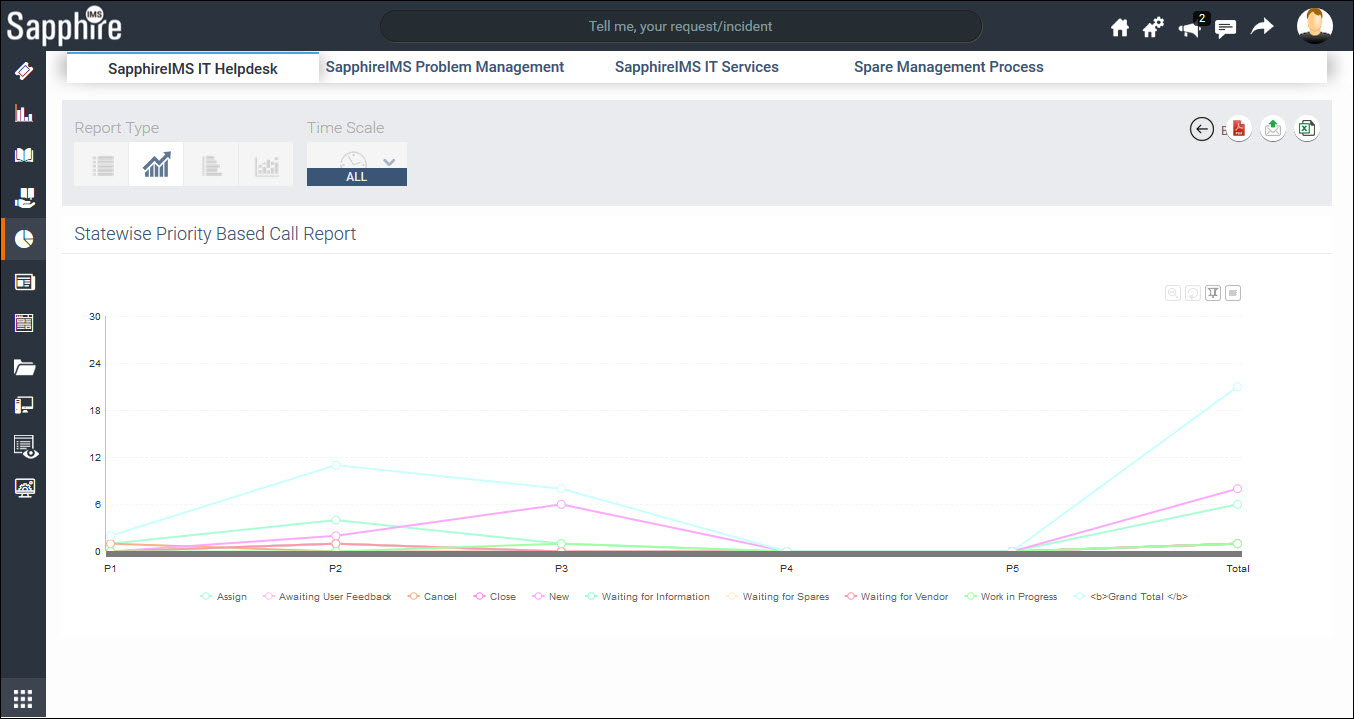
Click on  to zoom the chart out.
Click on  to reset the view.
Click on  to display the options to select
for exporting the displayed chart. You can save the chart image as
a JPG, PNG, PDF, SVG or XLS file for embedding in any document. Note
that in the case of XLS, the summary table is exported.
to display the options to select
for exporting the displayed chart. You can save the chart image as
a JPG, PNG, PDF, SVG or XLS file for embedding in any document. Note
that in the case of XLS, the summary table is exported.
Click on  to view the data as a bar chart.
Note that the colors are fixed and randomly applied.
to view the data as a bar chart.
Note that the colors are fixed and randomly applied.
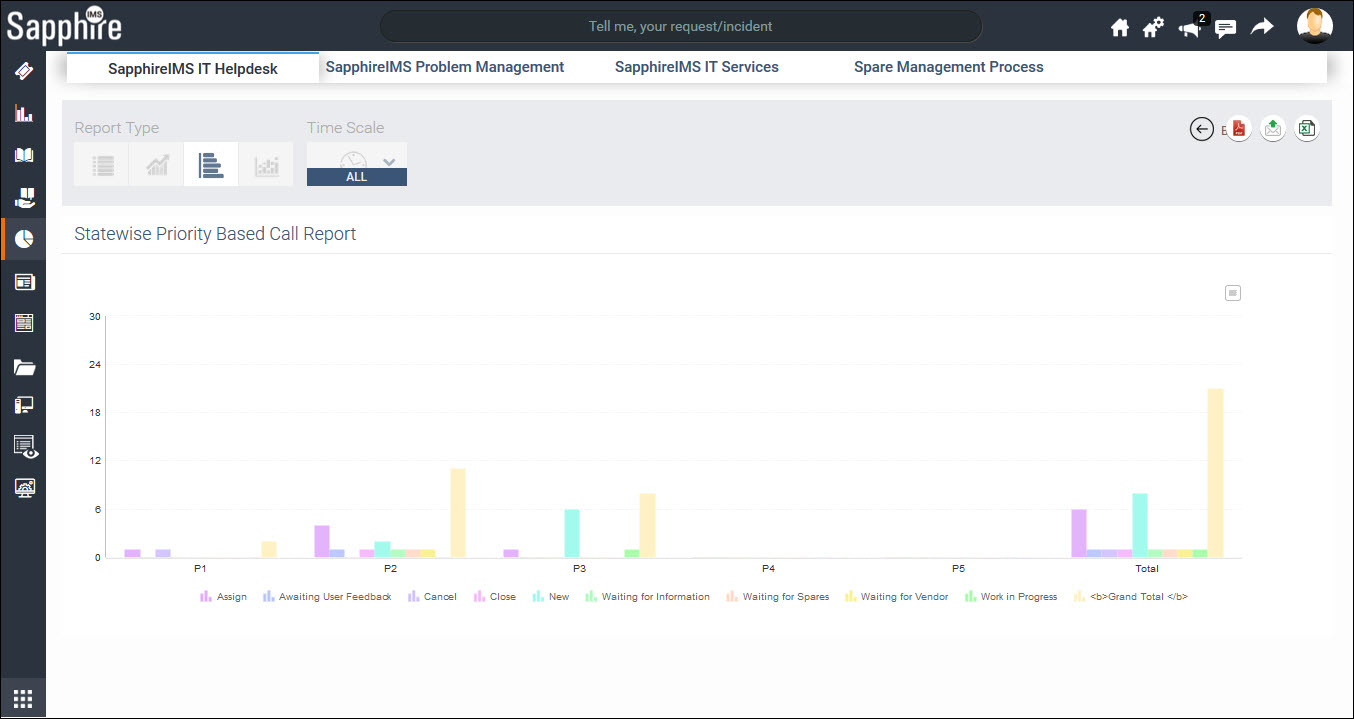
You can export the chart in various formats (refer to Trend chart)
Click on  to view the data as a stacked bar
chart. Note that the colors are fixed and randomly applied.
to view the data as a stacked bar
chart. Note that the colors are fixed and randomly applied.
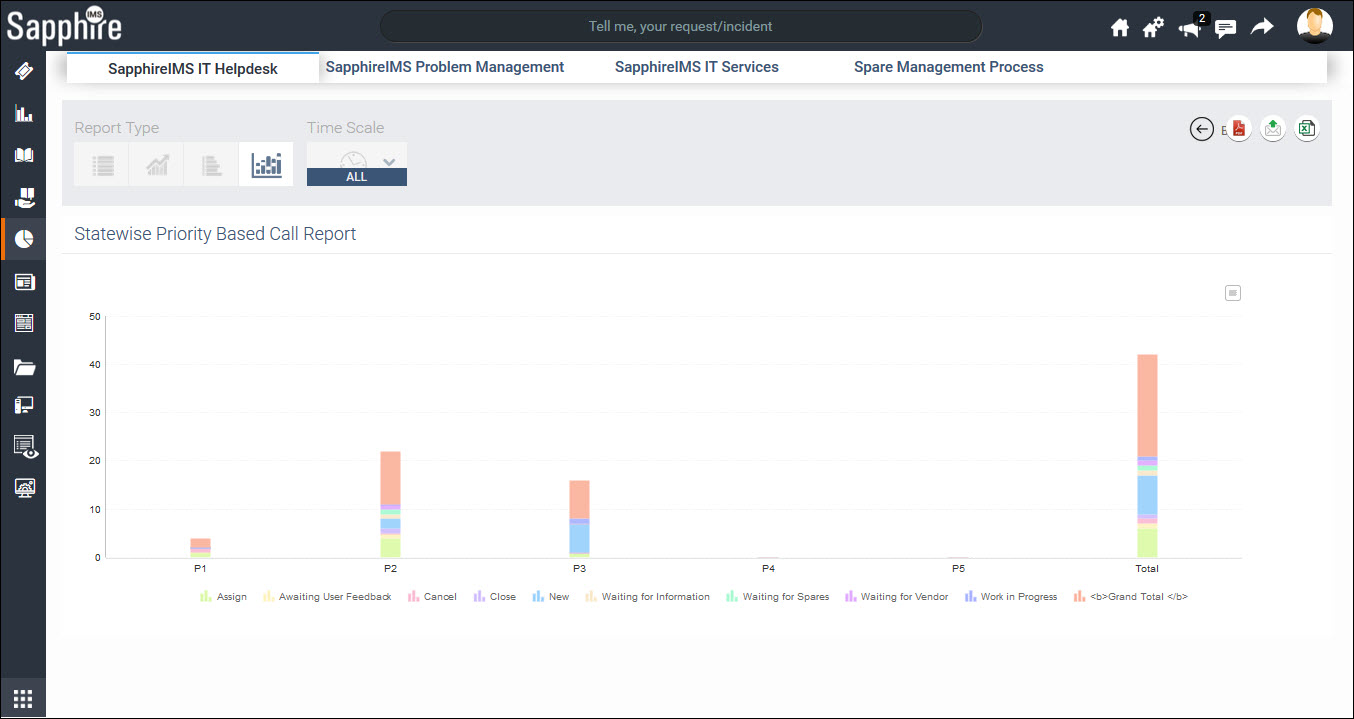
You can export the chart in various formats (refer to Trend chart)
Click on the  option to export the currently
viewed report in a PDF file. The format of the PDF is configurable
and a pop-up appears to change any of the default appearance of the
PDF. The Page size, orientation, Fonts and table design can be changed.
Click on '+' in the Advanced
Settings to expand the section.
option to export the currently
viewed report in a PDF file. The format of the PDF is configurable
and a pop-up appears to change any of the default appearance of the
PDF. The Page size, orientation, Fonts and table design can be changed.
Click on '+' in the Advanced
Settings to expand the section.
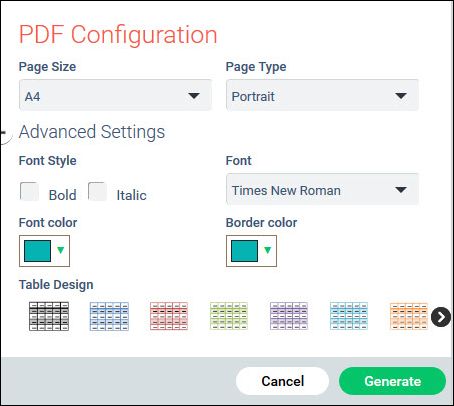
Click on 'Generate' to create the PDF report.
Click on  to e-mail the currently viewed report.
You need to enter the recipient e-mail ids, the subject and any message
which goes into the e-mail body.
to e-mail the currently viewed report.
You need to enter the recipient e-mail ids, the subject and any message
which goes into the e-mail body.
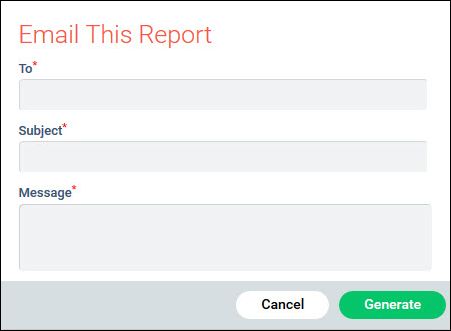
Click on 'Generate' to e-mail the report. The report is sent as an attachment to the e-mail.
You can make changes to an in-built report and save it. This is useful when you want to make minor changes to an existing report and do not want to go through the effort to create a new report.
On the reports listing screen, click on the  icon.
The Edit In-built Reports screen is displayed.
icon.
The Edit In-built Reports screen is displayed.

You can edit the fields and 'Save'. For an understanding of the fields refer Service Desk->Reports->Creating Custom Reports.
Often it may be needed to set the report permissions for a number of reports. While doing this for each report is tedious, you can do it in bulk.
Select one or more reports and click on the option 'Access Permissions' on top of the report list screen.
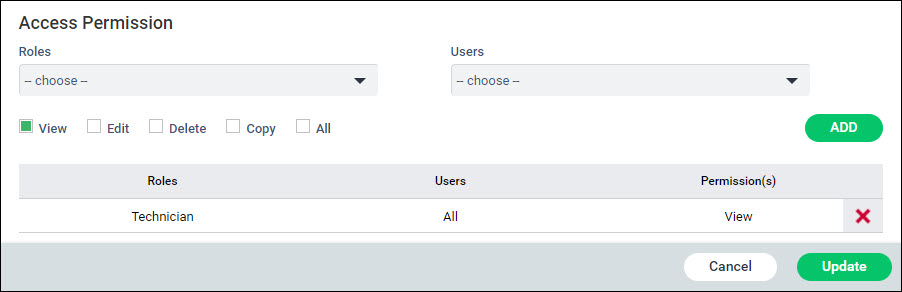
Select one or more 'Roles'.
Select one or more 'Users'.
Select the permissions from 'View', 'Edit', 'Delete', 'Copy', 'All'.
Click on 'ADD' to add the permission.
Repeat to add more permissions.
Click on 'Update' to update the permissions.
 Note: If you select only
a single report to modify the permissions, any existing permissions will
be displayed. However the same is not the case if you select multiple
reports for permission settings.
Note: If you select only
a single report to modify the permissions, any existing permissions will
be displayed. However the same is not the case if you select multiple
reports for permission settings.