
Surveys can be created and administered in SapphireIMS. The survey questions and possible responses can be configured and the survey scheduled among selected recipients. A windows can be specified during which the survey will be kept open. The survey questionnaire is made available for the participants who can login and participate. Notification and reminders can be sent. The results of the survey are analyzed and presented in a dashboard.
Click the 'Settings' tab. In the 'Service Desk configuration' section, click 'User Surveys'. The list of surveys and feedback forms are displayed.

Click on an existing survey to edit or click on 'ADD' to add a new survey.
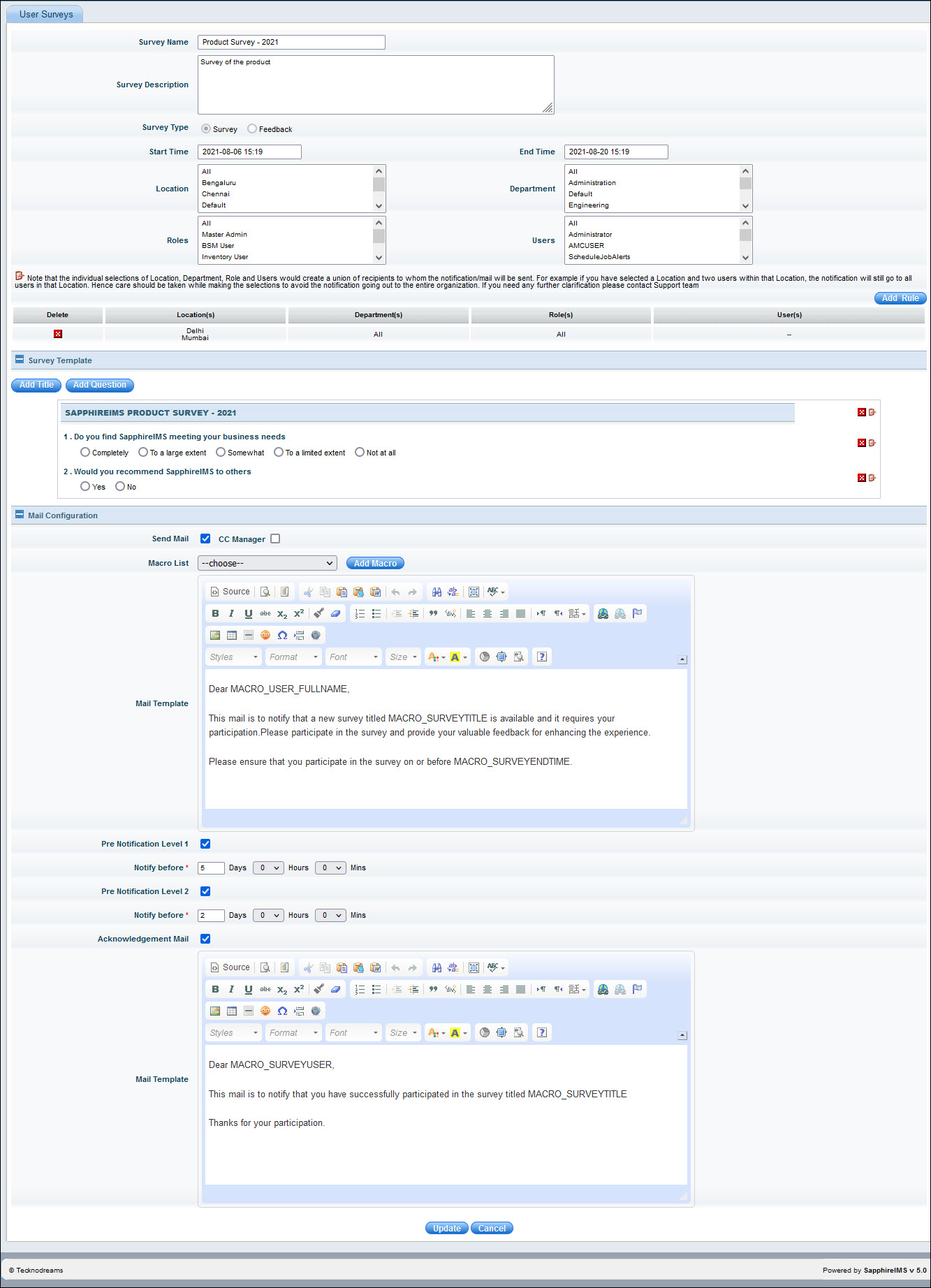
The fields for the Survey form are described in the table below.
|
Click on 'Update' or 'Save'.
To delete a survey or feedback form, select the survey in the listing and click on 'DELETE'.
A log of the notifications and acknowledgment
is available for each survey. Click on  to get the
log in Excel format.
to get the
log in Excel format.
 Note: Notification Log is
enabled only if mail notification for the survey is enabled.
Note: Notification Log is
enabled only if mail notification for the survey is enabled.
Note: Refer to Service Desk->Service Desk Common Features->Participating
in User Survey on how to participate in user surveys.
Often surveys are administered periodically and there may not be much change to the content. To facilitate this the survey template can be copied and a new survey created.
Click on  against
the survey. The new survey details need to be entered.
against
the survey. The new survey details need to be entered.
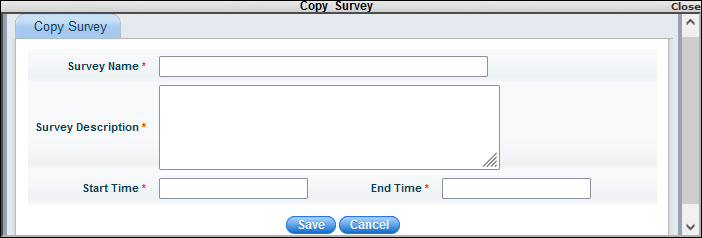
Enter the new 'Survey Name', 'Survey Description', 'Start Time' and 'End Time'.
Click on 'Save' to create the new survey.
Follow the steps below to add questions to the survey.
Click 'Add Question' to add the survey question.
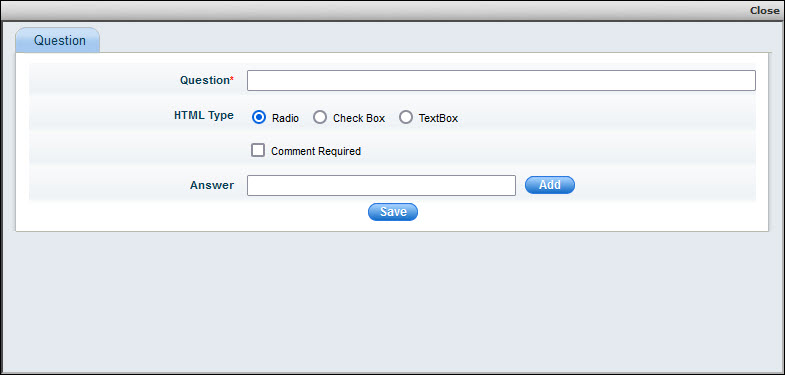
Enter the question, select the 'HTML Type' to be provided for the response (radio button or check box or Text Box) and check the box if comments are required for the question.
Enter the 'Answer' and click 'Add' to add the answer.
Click 'Save' to save the question and answers.
Repeat the steps to add more responses.
If the survey is being updated, you can edit any question or
title by clicking on  against the question or title. You can also delete the question or
title by clicking on
against the question or title. You can also delete the question or
title by clicking on  against
that.
against
that.
Note:
You can provide as many answers as required for one survey question.
To schedule a survey, click on the 'Survey Schedule' tab. The listing of scheduled surveys is displayed.

To edit an existing click on the survey schedule or click on 'ADD' to create a new schedule.
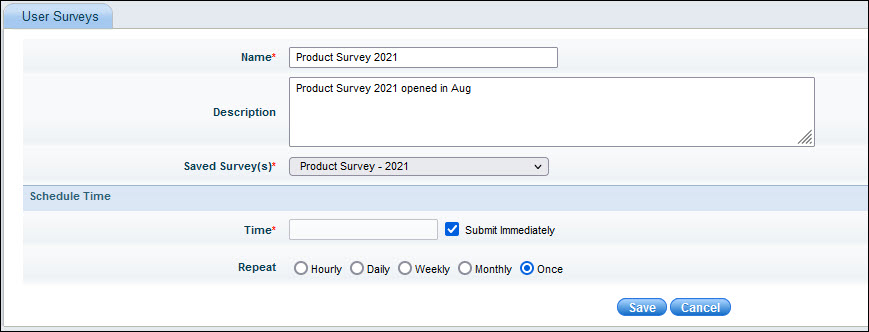
Enter the 'Name' and 'Description' of the survey schedule.
Select the survey to be scheduled from the 'Saved Surveys' 'drop down list.
Select the 'Time' at which the survey is to be started. Check 'Submit Immediately' if the survey has to be started immediately.
If the survey has to be repeated, select from the 'Hourly', 'Daily', 'Weekly', 'Monthly' and 'Once'.
Click on 'Save'.
 against the rule to delete it.