
You can monitor Windows Services running on the systems in the network for performance at regular polling intervals. The availability of the service is monitored and alarms can be generated if the service stops running. Only the devices that have been enabled for performance monitoring can be selected for monitoring the Windows Services running on them.
To enable the systems for performance refer to the section System Performance
1. Click the 'Settings' tab. In the 'Business Service Monitoring' section, click 'Windows Services'
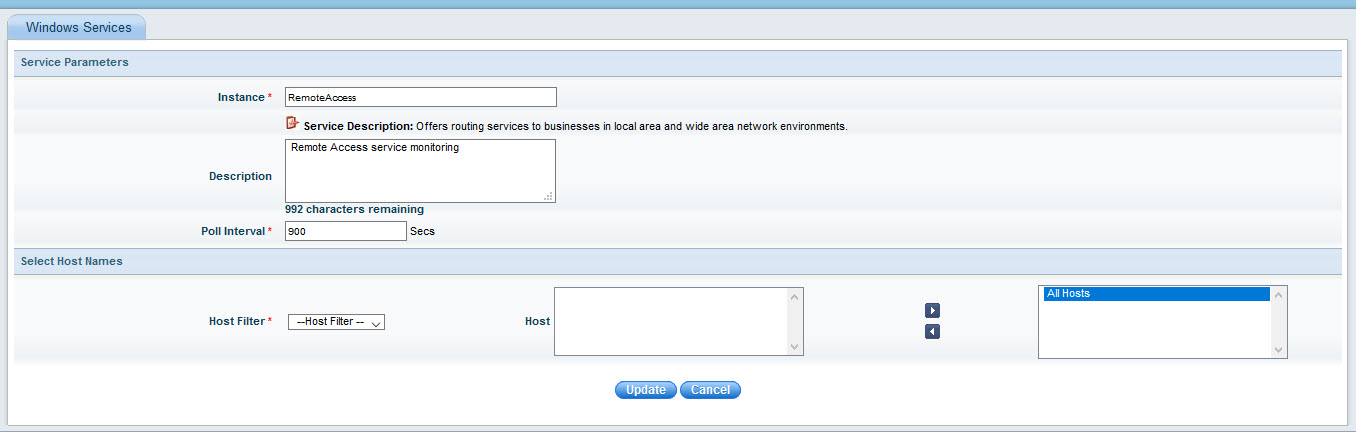
2. Click 'Add' to add a new windows service for monitoring. A new screen is opened which allows you to enter the details of the windows service to be monitored.
3. Select the 'Instance' from all the services available for monitoring. This list of windows services available for monitoring has been collected from all the systems for which inventory has been collected, and is listed in the drop down menu.
4. The Service Description displays the Windows Service Description which is collected during the inventory scan of all systems.
5. In the 'Description' box, you can enter any custom description.
6. By default, the 'Poll interval' is set as 900 seconds and this can be modified.
7. Select the list of hosts from ‘Host Filter’ and ‘Save’. All the nodes enabled for monitoring will be listed in the ‘Host Filter’.
‘All Hosts’ will include all nodes including those that may get added in future also.
‘Node Level’ will allow you to select the nodes individually from the list of hosts.
8. Click on 'Save' to save the settings.
9. Once the windows service is added, you can view the performance under the 'Enterprise' tab under 'Performance'. Refer to the Performance->Enterprise View topic for more details.
 Notes: If for the same windows
service, the polling interval has been configured for individual nodes
it takes precedence over the polling interval configured for ‘All Hosts’.
Notes: If for the same windows
service, the polling interval has been configured for individual nodes
it takes precedence over the polling interval configured for ‘All Hosts’.
1. Click the 'Settings' tab and in the 'Business Service Monitoring' section click on 'Windows Services'. This will display the list of Windows Services configured for monitoring.
2. To modify the settings for the configured service, click on the desired row in the instance column.
3. The Windows Services configuration screen opens. Make the necessary changes and click ‘Update’.
4. To view the
list of systems selected for monitoring a specific service, click the
icon ‘ ’ in the ‘Configured
Systems’ column. (Refer to the screen below).
’ in the ‘Configured
Systems’ column. (Refer to the screen below).
