
All the approved patches will be deployed to the affected systems on demand.
On the SapphireIMS menu, point to
‘IT Automation' and click
‘Patch Management’. Select
the  'Linux Patches' option.
Click 'Missing Patches' tab.

Select 'Patch Type' as 'OS Patches'.
In the 'Approval Type' drop down box, select 'Approved Patches'.
In the ‘System Type’ drop down box select ‘Normal Systems’ or ‘Critical Systems’ as required.
Use the search filter to select the search criteria from 'Host Name', 'Status' or ‘Title’and then enter the value in the Search Box.
Refer to Patch Management->Linux Patch Management->Linux Patch Scan->Advanced Search for using the Advanced Search options. In Advanced Search you can also select based on a 'Custom Field'. Select a 'Custom Field' and select the 'Criteria' to filter and enter the value in the Search box.
Select the approved patches and click the 'Deploy’ button. This process deploys the patch in the affected systems where the patch is missing. You can also click on 'Disapprove' button to move an approved patch to the disapproved list.
In case of more than one-affected systems, patches can be deployed to only a selected few. To achieve this, click on the number of in the 'Affected Systems' column.
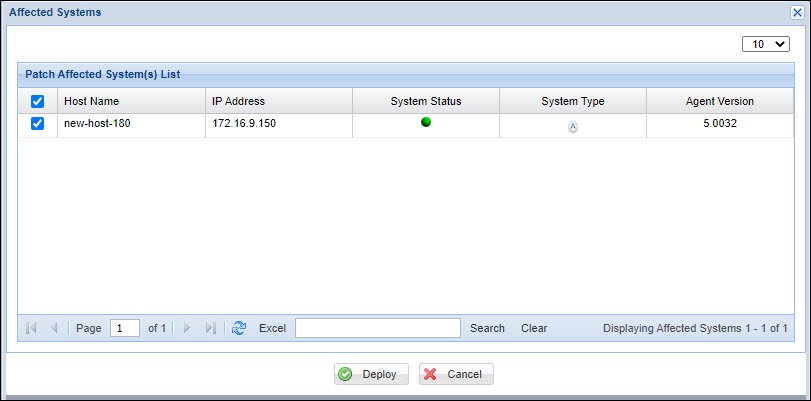
Select one or more of the affected systems on which the patch needs to be deployed. Click on 'Deploy'.
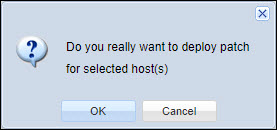
A confirmation screen is displayed. Click on 'OK'.