
This topic describes the Patch Management reports for Windows. Patch Management Summary Reports give detailed listings while Patch Management Analytical Reports provide counts and charts for analysis. Refer to the topic on Linux Patch Management Reports for the corresponding reports. The Patch reports provide information on missing patches, patch scans, patch job status etc.
Patch Summary reports provide a summary of patch management based on the filter conditions. There are a number of in-built reports and new reports can be added as well.
On the SapphireIMS menu, point to 'Reports' and click 'IT Automation Reports'.
Click the ‘Patch Summary Reports’ link. Click the ‘Add’ button. A screen to enter the report details is displayed.
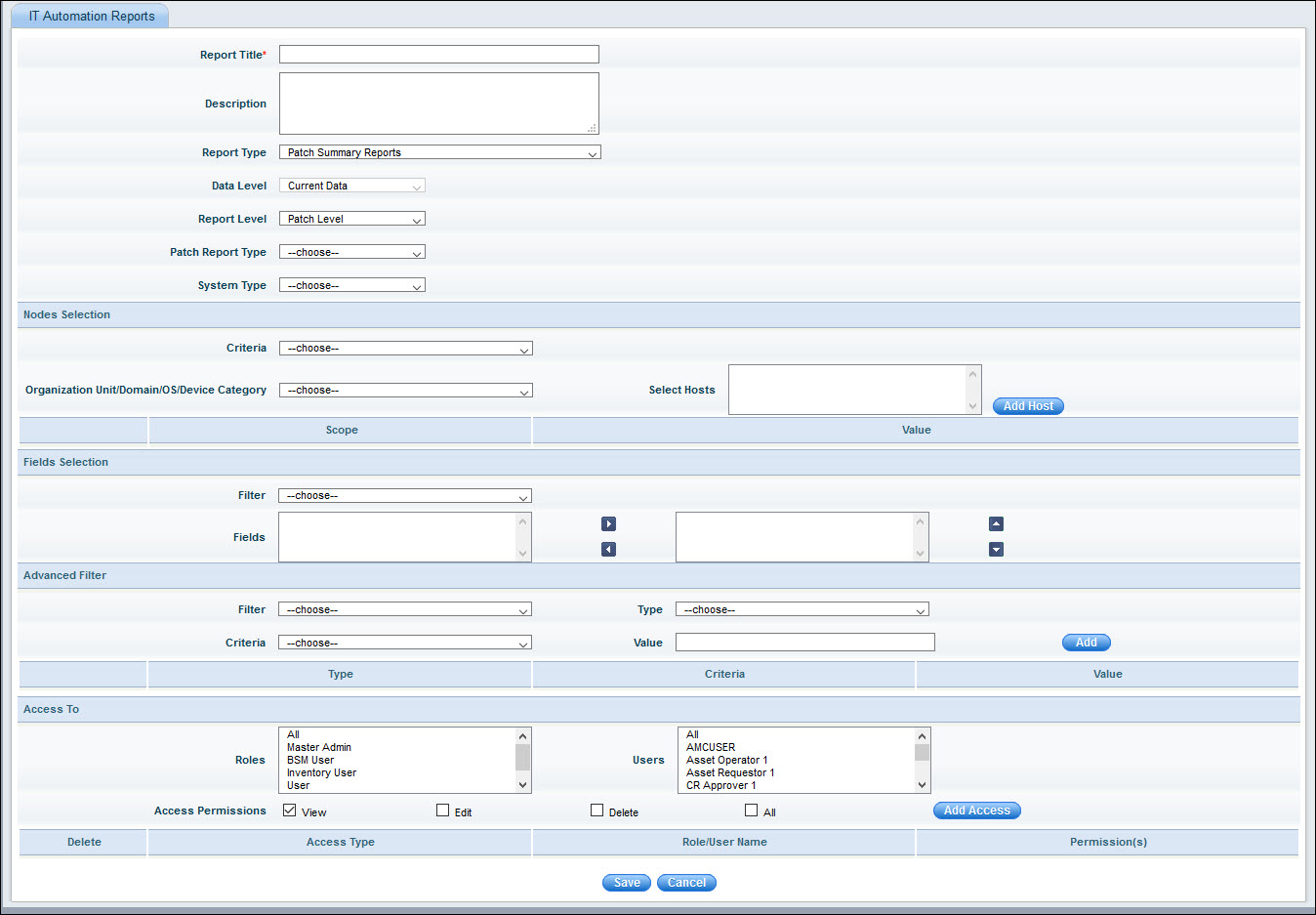
The fields are described below.
|
The following custom queries are available:
1. Patch Scan Report
2. Details of patch waiting for approval
3. Patch Deployment Report
4. Missing Critical Patches
5. Top n Product Based Missing Patches
6. Top n Product Based Installed Patches
7. Top n OS Based Missing Patches
8. Top n OS Based Installed Patches
9. Patch Details in Servers
10. Patch Details in Desktops
11. Patch Scan Report in Percentage
Enter the fields and click on 'Save'. The report gets added and appears in the report list.
Patch analytical reports gives the count of patches based on the filter condition selected as shown below.
On the SapphireIMS menu, point to 'Reports' and click 'IT Automation Reports'.
Click the ‘Patch Analytical Reports’ link. Click the ‘Add’ button. A screen to enter the report details is displayed.
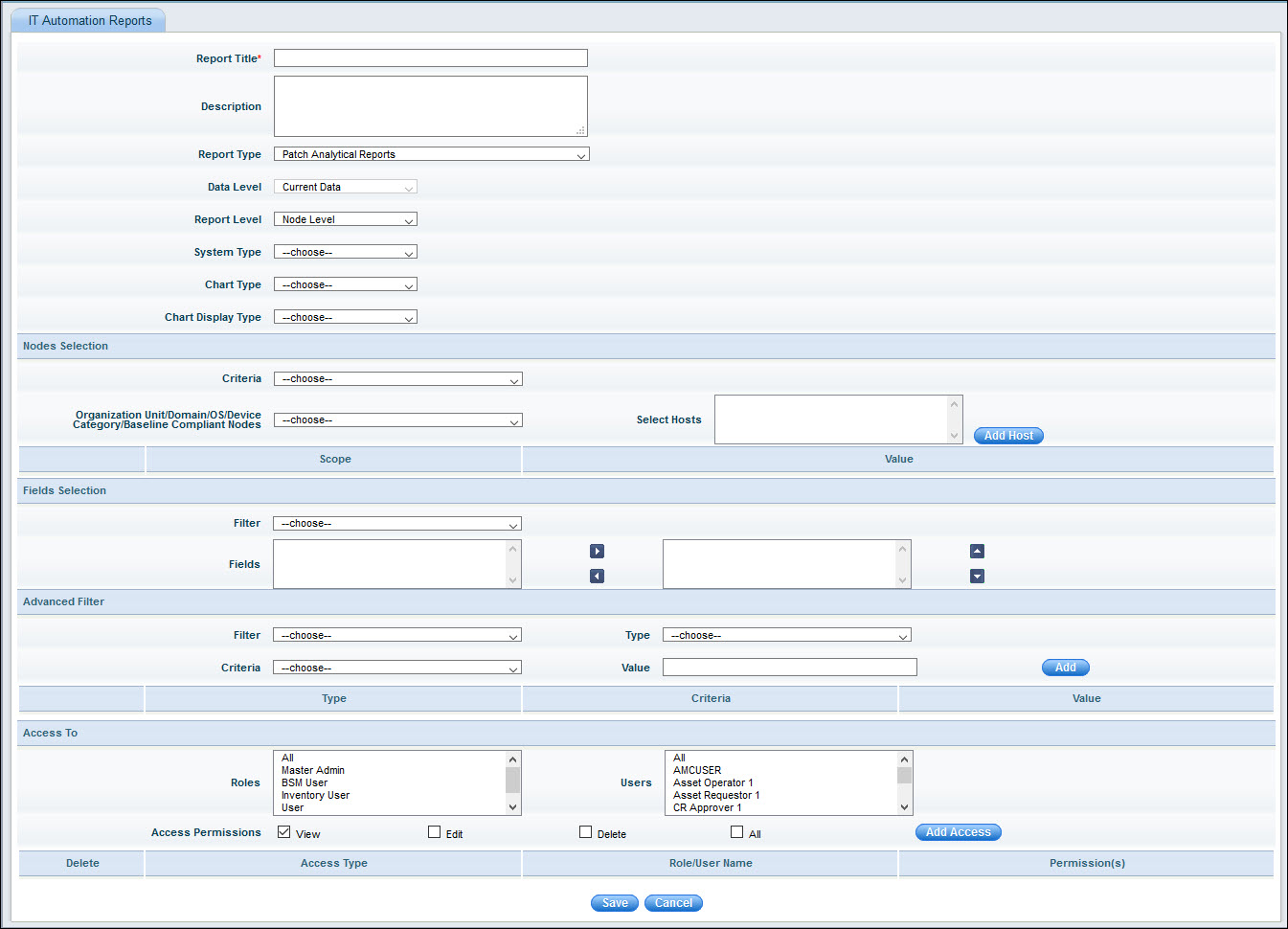
The fields are similar to the Patch Summary Reports. Additionally there are two fields for the chart display:
'Chart Type' can be 'Bar', 'Stacked Bar', 'Pie', 'Trend' and 'Summary'.
'Chart Display Type' can be 'Single' or 'Multiple'.
Enter the fields and click on 'Save'. The report gets added and appears in the report list.
 ’ to select
the hosts from the ‘Search Hosts’ window.
’ to select
the hosts from the ‘Search Hosts’ window.