Project Creation
SapphireIMS allows you to create projects
belonging to any of the above mentioned ITIL processes. Each project has
it's own processes and work flow. The workflow created can later be modified
based on the organization's requirement. Using SapphireIMS, the system
administrator can create multiple projects and allocate a project administrator
who can further configure the project workflow.
The System Administrator can also associate
the corresponding project managers who can subsequently receive any alerts/notifications
related to the project. This also allows project managers to take control
on the processes and manage different phases of the project.
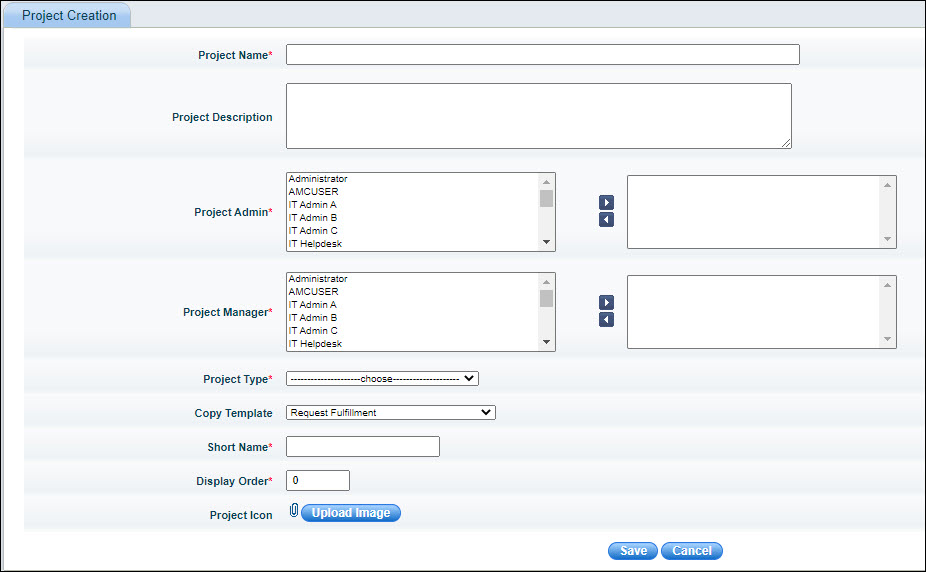
Project
Creation
Sr. No |
Field Name |
Description
|
1 |
Project Name |
Enter
the name of the project
|
2 |
Project
Description |
Enter a brief description of the project |
3 |
Project
Admin |
Select one or
more users from the user database to be assigned the role of Project
Admin and click  icon to move the users
to the right box. icon to move the users
to the right box.
 Important:
Only the Project Admin will have the rights to configure and manage
the project Important:
Only the Project Admin will have the rights to configure and manage
the project
|
4 |
Project Manager |
Select
one or more users to be assigned the role of project manager and
click the icon to
move the selected users to the right box.
Important:
The
project manager has the same access privileges as the Project
Administrator, but does not have the right to change the project
configurations
|
5 |
Project Type |
Select the type
of project. There are 4 types of project currently supported by
SapphireIMS.
Change
Management Incident
Management Problem
Management Request
Fulfillment
The user can select the appropriate project type which is applicable.
For more information on the project type, see ITIL
Processes
|
6 |
Copy
Template |
SapphireIMS provides
some in built templates which will pre-configure the project work
flow to have a default set of roles, states etc. 'Simplified Incident
Management Template' is a simplified version of the Incident Management
template and 'Blank Template' allows you to configure the services,
categories and other processes of the ITIL project.
|
7 |
Short
Name |
Enter the short
name of the project. This name is used to submit a new ticket
for the respective project. For e.g. you can submit a new ticket
in the incident management project by clicking the 'New IM' project
icon. The record listing screens display the short name of the
project on top. |
8 |
Display
Order |
The order in
which the project tab is displayed in the Service Desk views. |
9 |
Project
Icon |
The project icon
that is selected here is displayed while submitting a new ticket
in service desk. You can click the project icon to select the
project in which the ticket will be submitted. |
|
Note:
The template selected in 'Copy Template' cannot be changed once the project
has been saved
Important: 1. Only Project administrator
can view the Settings tab and change the project configuration. This option
is not available to the project manager. Permissions
or credentials are provided to the Project Manager to view all the project
statistics available to the Project Administrator, but not settings of
the project i.e. project manager does not have access to Settings tab
2.
The 'Service Desk' menu is visible on the SapphireIMS menu bar only after
a service desk project is created
Alias
for Service Desk Project
