
This chart helps you to check the availability of technicians before assigning a request to them.
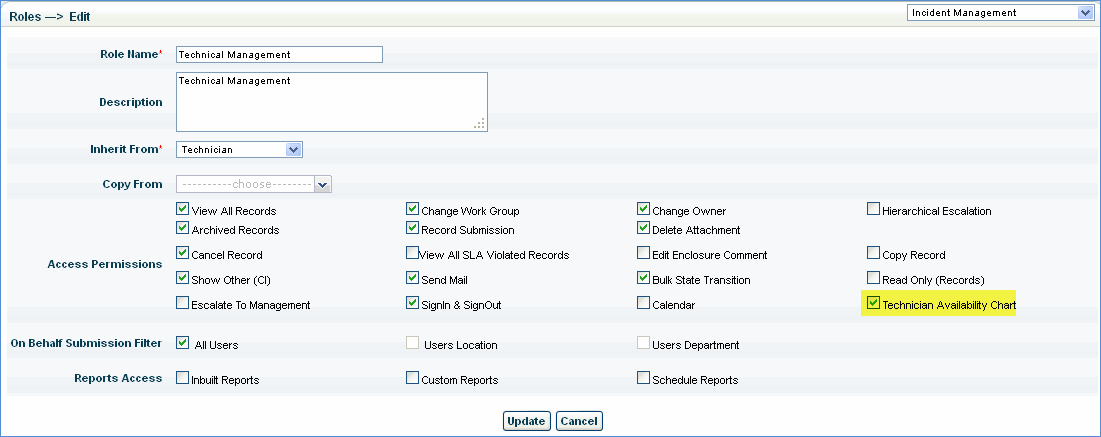
Click Service Desk Project Settings > Roles
Click the desired role to edit it
Check the 'Technician Availability Chart' box as shown below
Click 'Home' > 'Technician Availability Chart'
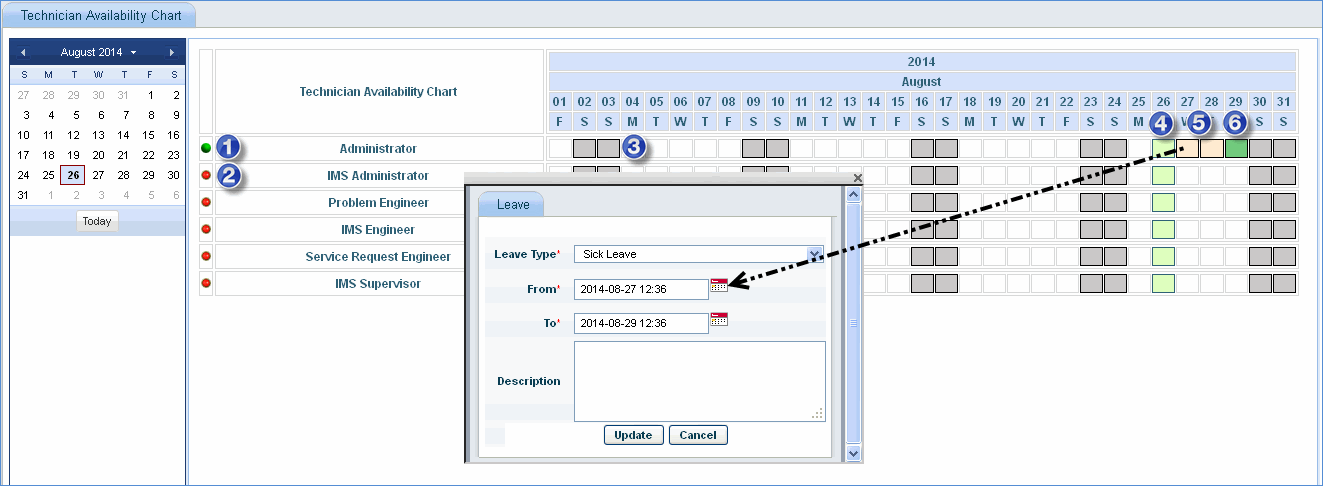
1. Green indicates that the 'Administrator' user has signed in
2. Red indicates that the user has not signed in
3. Grey indicates that it is a weekend
4. Light green indicates that the calendar date matches with today's date
5. Light pink indicates that leave is availed. Click the date to view the leave allocation popup window. Select the 'From' date and 'To' date and click 'Save' to allocate the leave or click 'Update' to update the leave allocated as the case may be.
Note: To apply for leave starting from a desired date, click on a box corresponding to the date in the calendar. The above leave popup is displayed.
Select the 'Leave Type', 'From' and 'To' dates and click 'Update'.
To configure leave types, go to Settings > Service Desk Configuration > Business Hours, Holidays and Leaves
6. Dark green indicates that it is a holiday. This will appear only if a holiday is defined (in Settings tab > Service Desk Configuration > Business Hours, Holidays and Leaves) with a Location and only for those Technicians whose 'Locations' are matching with the 'Location' selected for the Holiday.
Note: Please refer to Leave Configuration to change the leave color
Login as Approval Manager and go to Service Desk Home Tab-> Technician Availability Chart
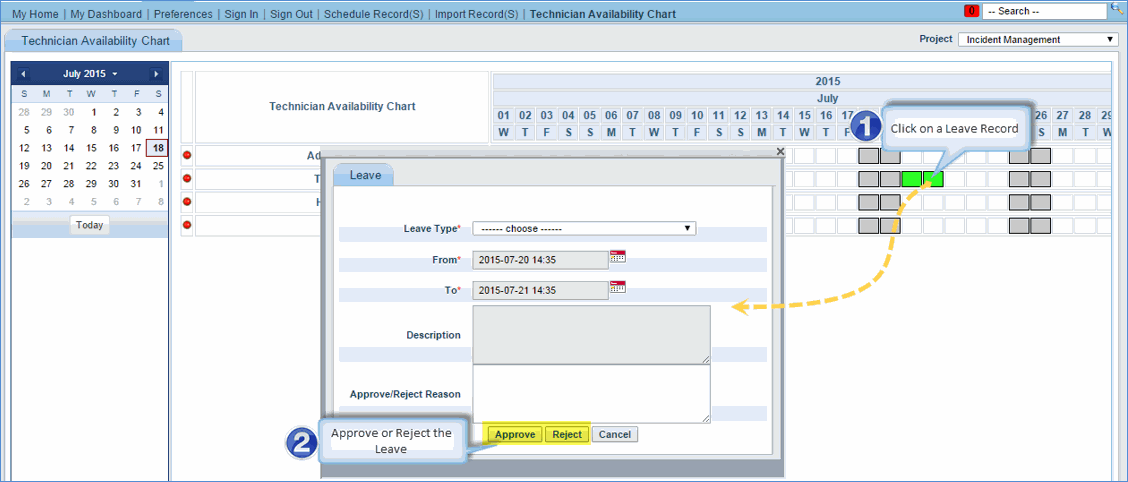
Appoval manager of the respected project can approve/reject the leave
While approving/rejecting the leave, manager can give reason for his action
Manager cannot edit the leave details like type,start and end dates and comment which are provided by the technician while applying
Approval Manager can apply the leave on behalf of technicians
Applied leaves are high lighted with green dot (approved) and red dot (rejected)
You can automatically sign out of service desk after a specified duration.
To configure the sign out interval, go to Settings > Advanced System Settings > Global Settings
Change the value of the setting key 'Automatic User Sign-Out Alert' and the value of the setting key 'Automatic User Sign-Out Interval'
The 'Automatic User Sign-Out Alert' is displayed before the 'Automatic User Sign-Out Interval'