
CMDB supports an earlier legacy user interface as well as a modernized new user interface.
Depending on your role settings, you will be taken to the legacy or the new CI. In the legacy UI when you click on the CMDB tab the CMDB dashboard is displayed. Depending on the settings configured this could change.
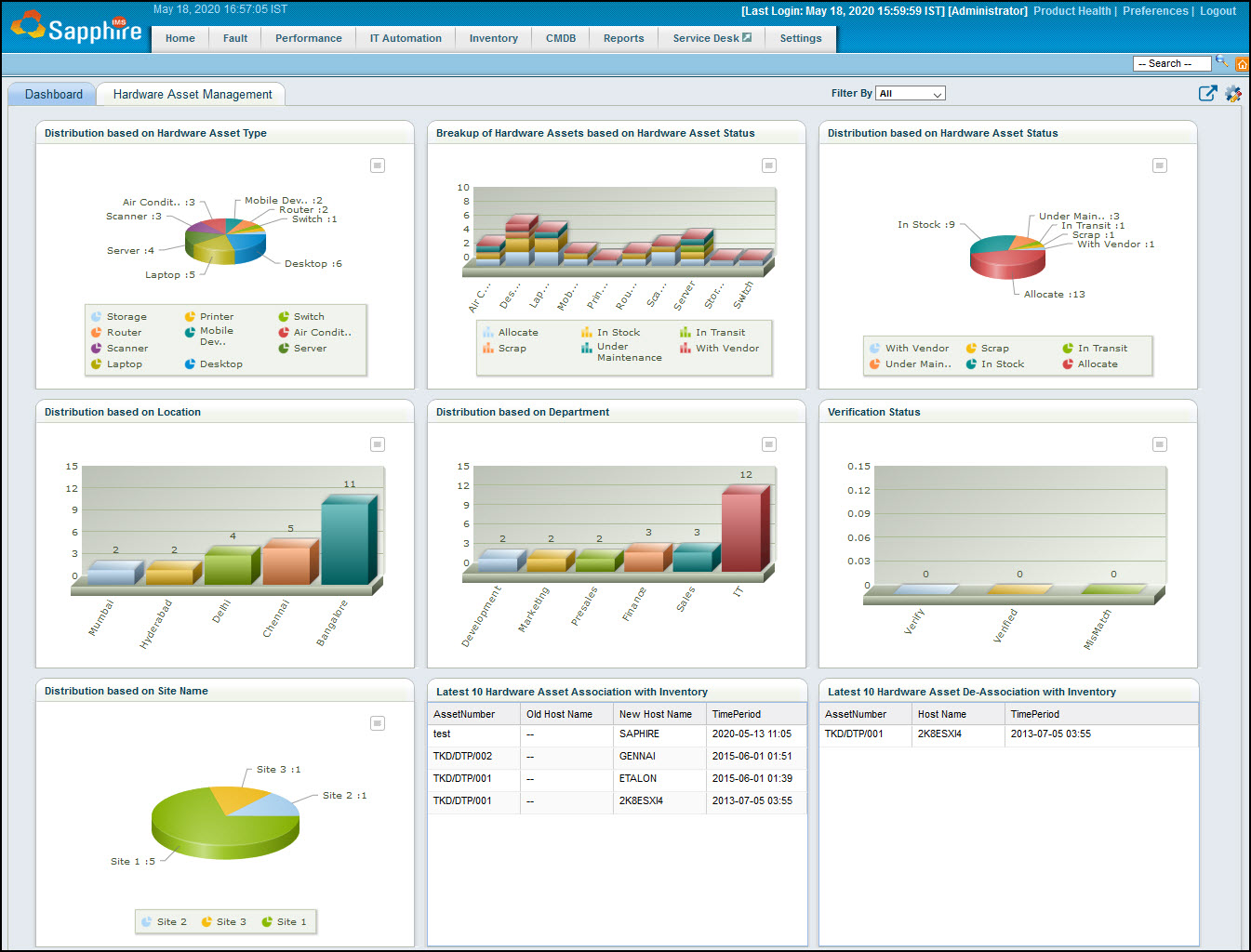
Click on  to configure
the dashboard.
to configure
the dashboard.
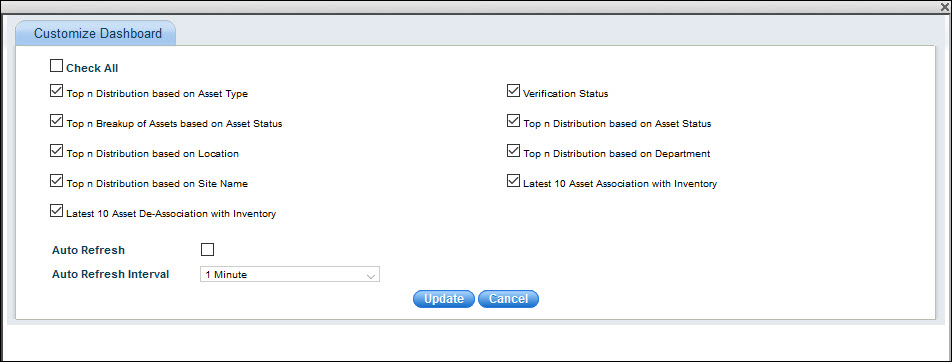
Click on the dashboards which should be enabled. To enable 'Auto Refresh', click on the option. Enter the 'Auto Refresh Interval'.
Click on 'Update'.
Click on  to select
the filter options.
to select
the filter options.
You can click on any asset and drill down to view the details in a list view.
If you do not have Service Desk installed, refer to Appendix->CMDB (Legacy Interface)->Asset (Legacy Interface)->Asset Management (Legacy Interface) for details on using CMDB.
If you have Service Desk installed,
click on  to open the new user interface. Refer
to CMDB->Asset
Management->Asset Listing Views for details. This can
be opened from the Service Desk home page if you have Service Desk
installed.
to open the new user interface. Refer
to CMDB->Asset
Management->Asset Listing Views for details. This can
be opened from the Service Desk home page if you have Service Desk
installed.
The default CMDB home page in the
legacy view is the dashboard and is what is displayed upon login.
To change the home page click on the button  on the top right side. A pop-up is displayed.
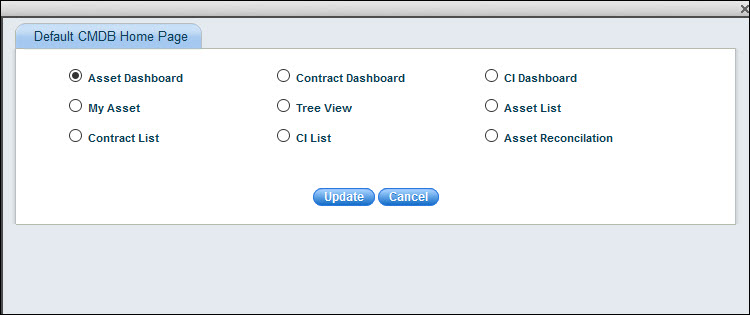
Select among the options and click on 'Update'. The default home page change will take into effect next time you login.
 Notes:
1. If the user does not have the privilege to view the CMDB default home
page, then the global settings variable value is used to display the default
home page.
Notes:
1. If the user does not have the privilege to view the CMDB default home
page, then the global settings variable value is used to display the default
home page.
2. Asset/Contract/CI dashboards display the dashboard only if there are records present.