
It is of utmost importance today to be aware of event the smallest of issues affecting your IT infrastructure on a daily basis to ensure smooth continuity of work flow. With SapphireIMS mobile application, you are always up to date on the status of your IT network.
To facilitate viewing IT infrastructure related critical task status in Fault, Performance, IT Automation, Inventory, Compliance and Service Desk modules mobile widgets is introduced.
Mobile widget is a component which is configured to display the desired result (of the query) in mobile view.
To view the following in-built mobile widgets provided by SapphireIMS, go to Settings > Advanced System Settings > Mobile Widgets
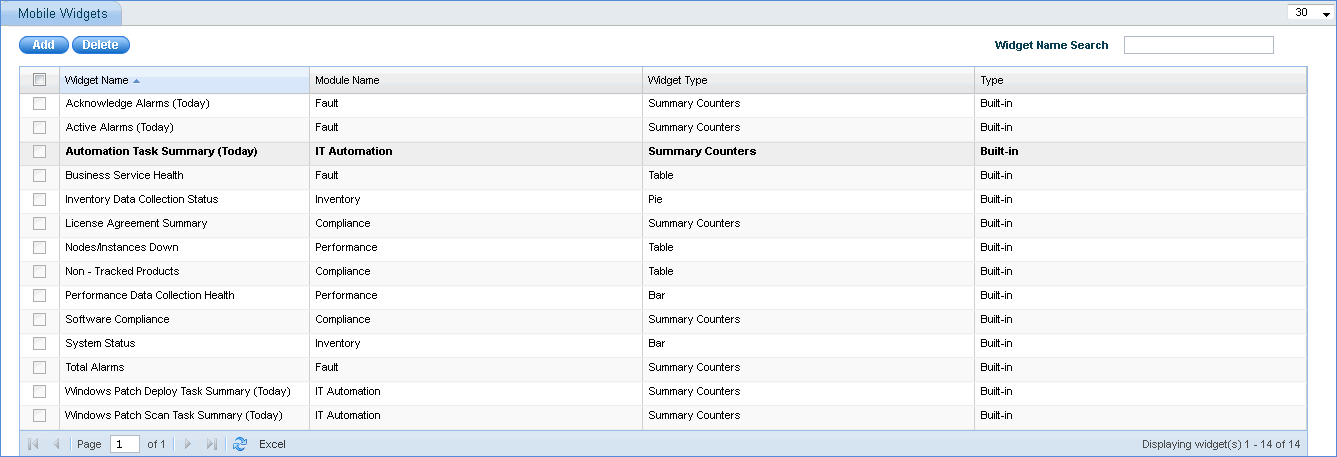
Follow the steps below to configure and view mobile widgets on your smart phone device
Click 'Add' to add a new mobile widget
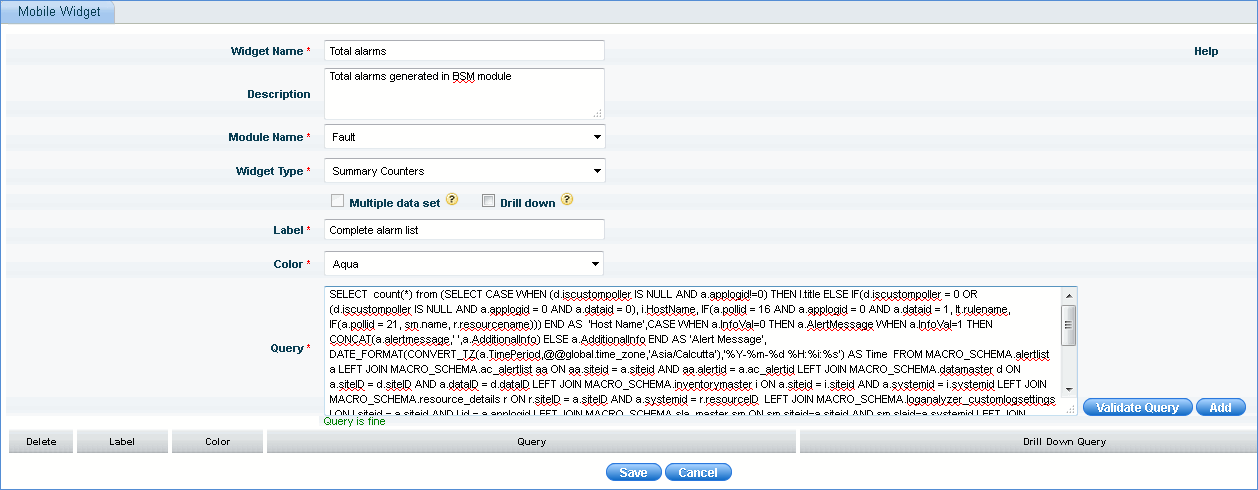
1. Enter the widget name and description
2. Select the 'Module Name' to which the widget belongs.
3. Select the 'Widget Type' or the type of visualization to be displayed in the mobile
4. For all widget types other than 'Table', check the box if multiple data set has to be shown in a single chart.
5. Check the box if drill down has to be enabled for the chart to show the summary view which requires drill down query
6. For 'Bar' and 'Line' widget types, enter the X-axis and Y-axis labels to be displayed in the chart. For 'Summary Counters' widget type, provide the label and color to be displayed in the chart
7. Enter the query to return the data set information to be displayed in the chart
Note: Click 'Help' to view the list of widget macros supported
8. Click 'Validate Query' to validate the query.
9. Click 'Add' to add the query. Similarly, you can add multiple queries.
10. Click 'Save' to save the widget configuration data
Mobile widgets can be viewed by the user only if the user has the required access permission. To provide mobile widget access permission, go to Settings > User Management > Roles
To use SapphireIMS on the mobile, refer to Appendix > Using SapphireIMS On The Mobile > Installation