Quick Template


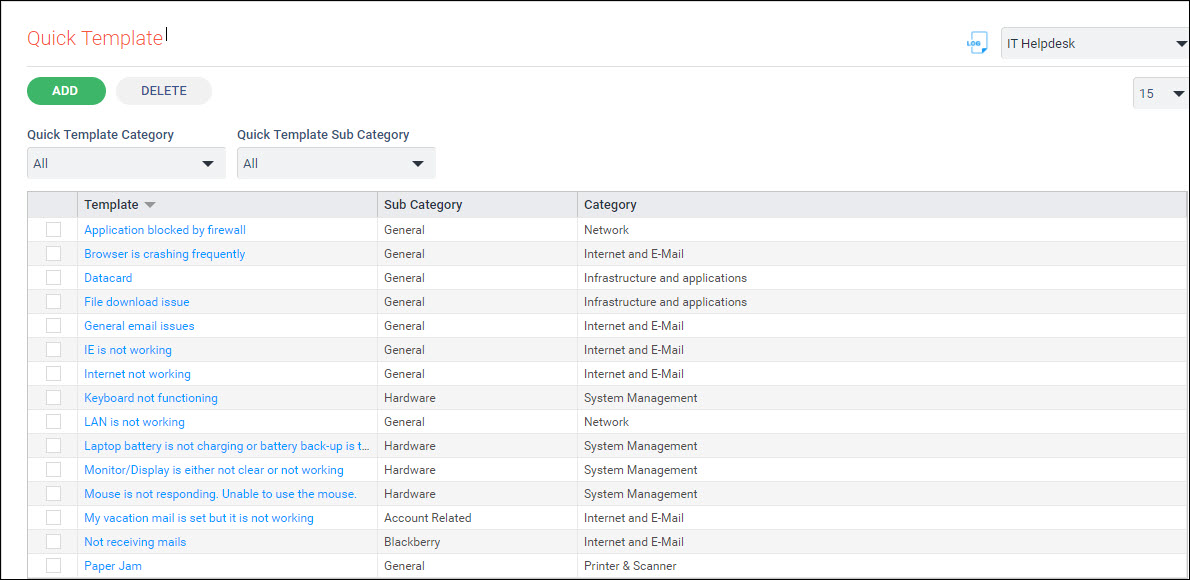
Quick templates allows the organization to publish in-built templates for submission of Service Desk records for users. The templates can be simplified to allow entry of minimal information needed for submission of each type of record. This is done by pre-filling some of the fields from the template. This helps them to quickly submit the service desk record on a single click as the 'Title', 'Description', 'Service', 'Category', 'Sub-Category', and the three levels of 'Derived Field' values are automatically submitted from the quick template.

SapphireIMS ships a list of in-built templates with each of the projects. The end users can browse through the templates whenever they want to submit a Service Desk record.

To use Quick Templates, refer Service Desk->Service Desk Common Features->Using Quick Templates.


SD-Settings-SrvCatQTList.jpg

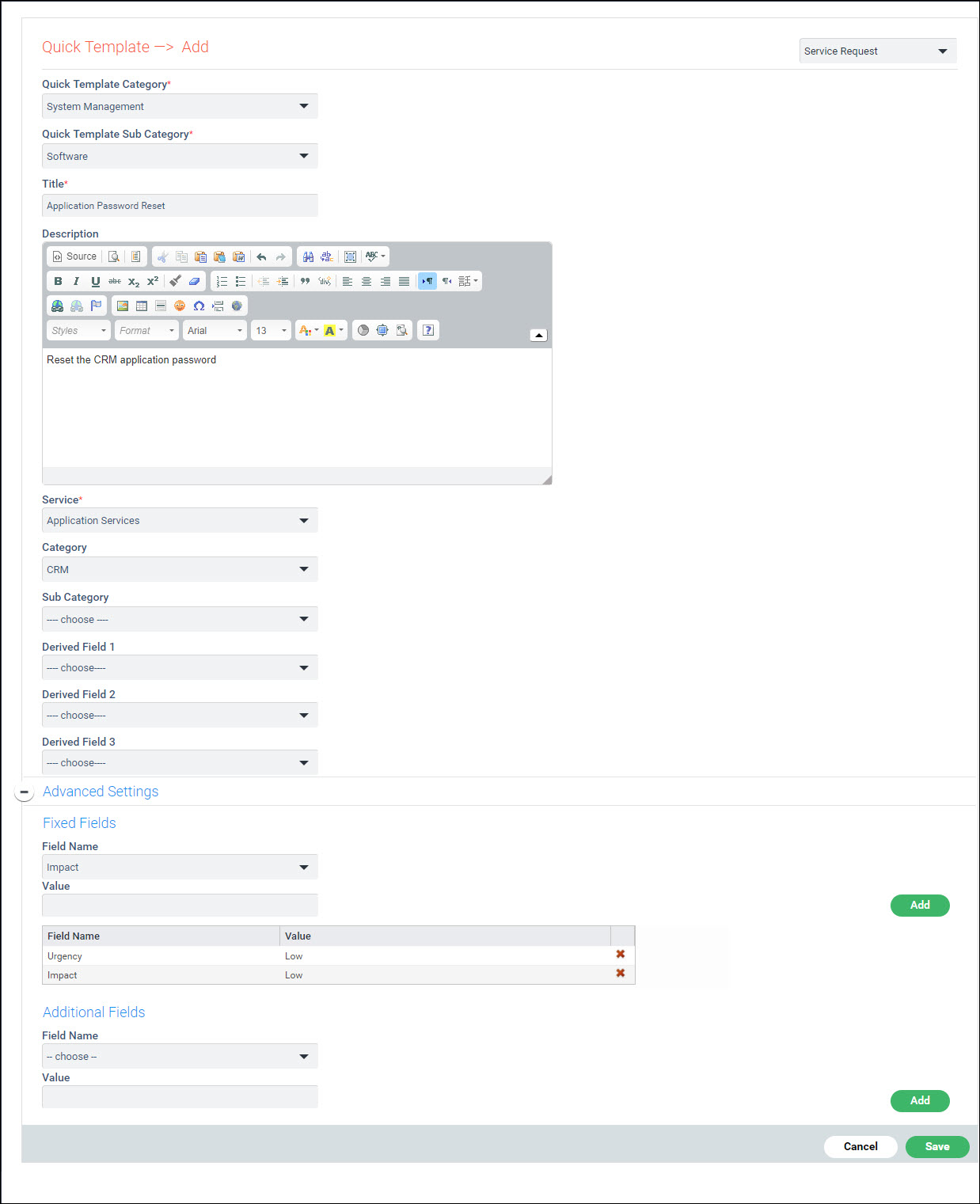
SD-Settings-SrvCatQTAdd.jpg

Serial No

Field Name

Description

1  

Quick Template Category

Select the template category for the new quick template definition.

Note.gif Note: To add 'Quick Template Category' refer Settings->Service Desk Configuration->Self Service Category


2

Quick Template Sub Category

Select the quick template sub category for the new quick template definition.

Note.gif Note: To add 'Quick Submit Sub Category' refer Settings->Service Desk Configuration->Self Service Category


3

Title

Enter the title for the new template definition. The Service Desk record title field will be populated with the value that is provided here.

4

Description

Enter the description for the new template definition. The Service Desk record description will be populated with the value that is provided here.

5

Service

Enter the service for the new template definition. The Service Desk record Service field will be populated with the value that is provided here.

6

Category

Select the Category for the new template definition. The Service Desk record Category field will be populated with the value that is provided here.

7

Sub Category

Select the Sub Category for the new template definition. The Service Desk record Sub Category field will be populated with the value that is provided here.

8

Derived Fields

Select the Derived fields for the new template definition. The Service Desk record Derived fields will be populated with the values that are provided here


Advanced Settings

Click on '+' to expand this section.

9

Fixed Fields

Select values to pre-populate the fixed fields in records. Select a fixed field from the drop-down list. Enter a fixed value or select from a list and click on 'Add'.

Repeat this for as many fixed fields which need to be pre-populated. You can remove fields by clicking on SD-Settings-SrvCatQTDelIcon.jpg.

10

Additional Fields

Select values to pre-populate additional fields in records. Select an additional field from the drop-down list. Enter a fixed value or select from a list and click on 'Add'.

Repeat this for as many additional fields which need to be pre-populated.  You can remove fields by clicking on SD-Settings-SrvCatQTDelIcon.jpg.