Roles


Roles are an integral part of SapphireIMS and provide controlled access to the system. SapphireIMS is shipped with pre-defined roles for the ITIL project templates. However additional roles can be defined.


In-built Roles

The following table describes the in-built roles and the project templates they are applied.


Serial No

Roles

Description

Projects

     1

Submitter

The person who uses the IT Service and raises a record against the service.

All Projects

     2

Technician

This is the role of the Technical Expert who provides technical expertise and support for the resolution of the record raised.

All Projects

     3

Approval Manager

This role has the privilege to provide approval for the workflow to  proceed and take the record to a conclusion in the workflow.

All Projects

     4

Inter Project Admin

This person has the privilege to transfer records from one project to another.

All Projects

     5

Child Request Access

This role has the privilege to submit dependent records (child records) for a parent record.

All Projects

     6

KB Manager

This role has the privilege to add and update the Knowledge Base

All Projects


Serial No

Privilege

Submitter

Technician

Approval Manager

Inter Project Admin

Child Request Access

KB Manager

     1

Submit Records

     *

     *

     *

    *

     *

     *

     2

Send Mails

     *

     *

     *

    *

     *

     *

     3

Perform bulk state movement of records

     *

     *

     *

    *

     *

     *

     4

Associate assets to service desk records

     *

     *

     *

    *

     *

     *

     5

Change the source of the record

     *


     6

Access to archived records

     *

     *

     *

    *

     *

     *

     7

Delete mail attachments

     *

     *

     *

    *

     *

     *

     8

Cancel Record

     *

     *

     *

    *

     *

     *

     9

Copy Record

     *

     *

     *


    10

Edit Enclosure Comments

     *

     *

     *


    11

View all submitted records for the project


     *


    12

View all SLA violated records


     *

     *


    13

Change/create work group


     *

     *


    14

Change the owner of the record


     *


    15

Submit the record on behalf of other users


     *


    16

View in built reports and configure custom and scheduled reports


     *

     *


    17

Change the approval manager but not the owner of the record


     *


    18

Escalate to Management

     *

     *

     *

    *

     *

     *

    19

Make records read-only (no update is allowed)

     *

     *

     *

    *

     *


    20

Hierarchical Escalation


     *

     *


    21

Sign In and Sign out

     *

     *

     *

    *

     *

     *

    22

Calendar


     *

     *

    *

     *

     *

    23

Technician Availability Chart


     *


    24

Enclosure Access Control


     *


    25

Access KB based on Location


     *

    26

Access KB based on Department


     *


Note.gifNote: Though the Inter Project Admin and Child Request Access roles appear to have similar attributes it is necessary to define each roles inheriting from these separately as only roles based on Child Request Access can create a child record and roles based on Inter Project Admin can transfer records across projects.


Adding and Deleting Roles


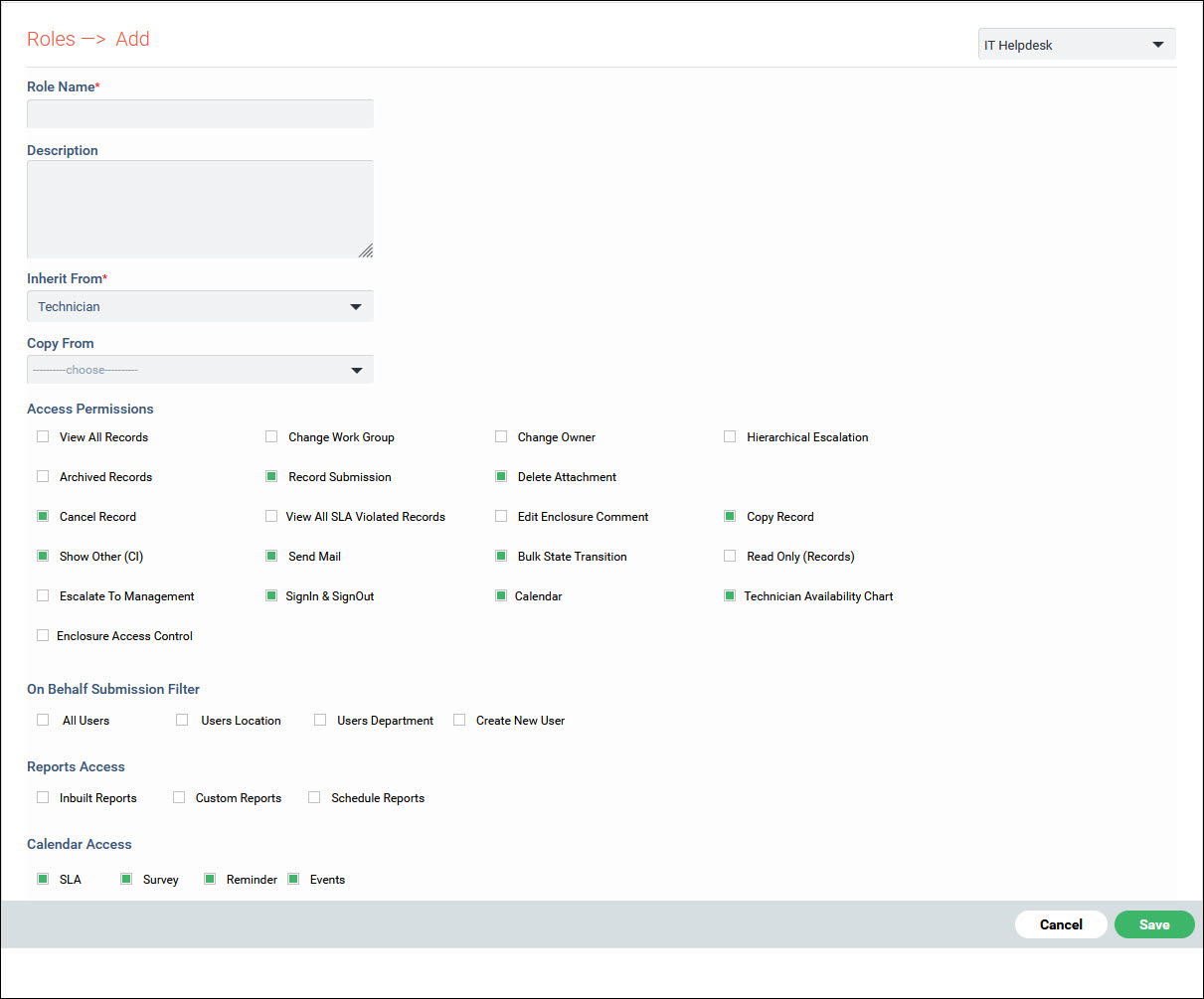
SD-Settings-RoleAdd.jpg


Serial No

Field Name

Description


1  

Role Name

Enter the Role Name.


2

Description

Enter the Description.


3

Inherit From

Select one of the pre-defined roles from which the attributes are inherited.

4

Copy From

Select a role if you need to copy the access privileges from it.

5

Access Permissions

Select the access privileges that are applicable to the role. The access privileges vary depending on the project and the role chosen in the 'Inherit From' drop down box.

 6

On Behalf Submission Filter

Based on this filter, the users will be visible in the ‘Users’ drop down list box in Submit Record page. Refer to Service Desk->Basic Operations->Submit a Service Desk Record->Submitting Records on behalf of others.

In the Submit Record page the 'Users' drop down list box will be visible only if the mode selected in 'Source' drop down box is 'Email' or 'Phone'.

All Users - Select this if all the users need to be displayed in the 'Users' drop down box  

Users Location – Select this if the user's location needs to be matched  with the logged in users location while displaying the users in the 'Users' drop down list box

Users Department - Select this if the user's department needs to be matched  with the logged in users department while displaying the users in the 'Users' drop down list box

Create New User - Select this option if this role is allowed to create a new user while submitting a record.

7

Reports Access


Select the type of reports to which the role has access. Select 'Custom Reports Add' if this role is allowed to create new custom reports.

8

Calendar Access

Select the role level access to be provided for SLA, Events, Reminder and Surveys in the Calendar. User role has access to Events, Reminders and Surveys. Technician and Approval Managers in addition can have access to SLA.


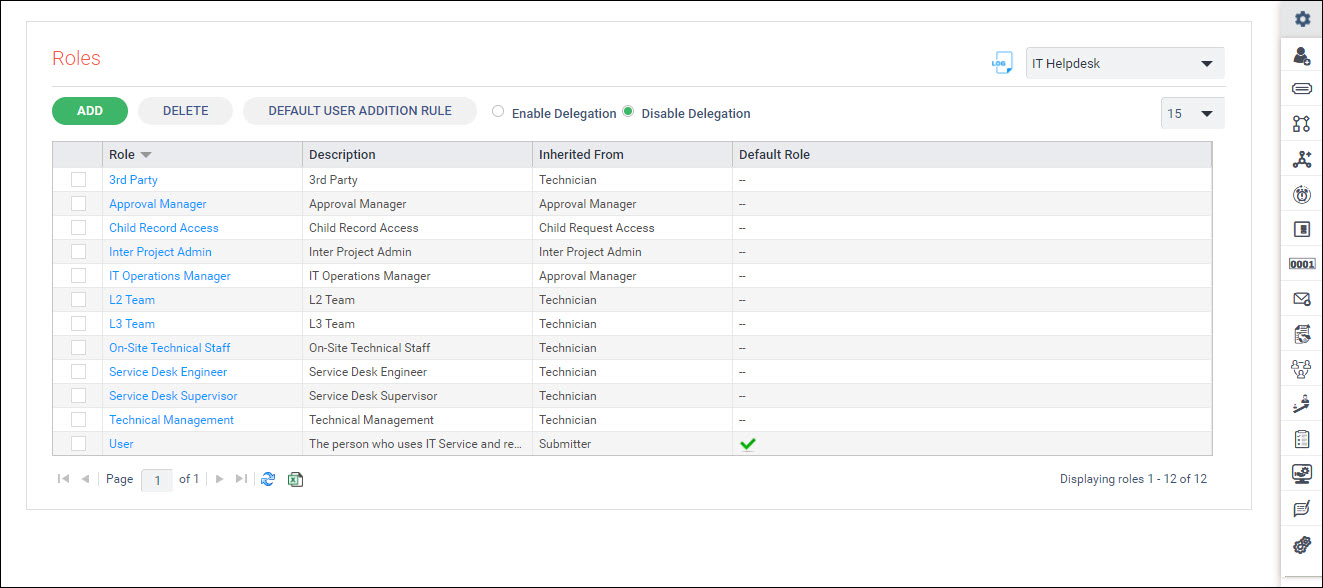
SD-Settings-Roles.jpg


Role Delegation


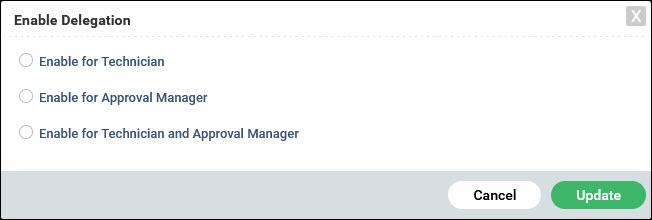
You can delegate tickets to another technician in the absence of the assigned technician. Similarly tickets that are in the State 'Waiting for Approval' can be delegated to an alternate approval manager for approval.

SD-Settings-RoleEnableDelegate.jpg


Default User Addition Role

You can allocate users to a default user role. This feature helps in automatically allocating many service desk users to the default role. This is applicable only to roles inherited from the 'Submitter' role.

SD-Settings-RoleSetDefault.jpg