
Metering Status
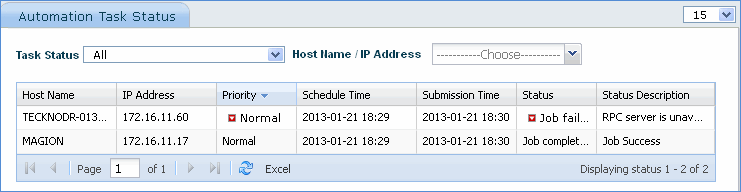
1. Click Metering Status
2. Click the software monitoring configuration
3. The host machines, metering task status, schedule time and submission time of the metering job is displayed.
Unregister nodes from monitoring
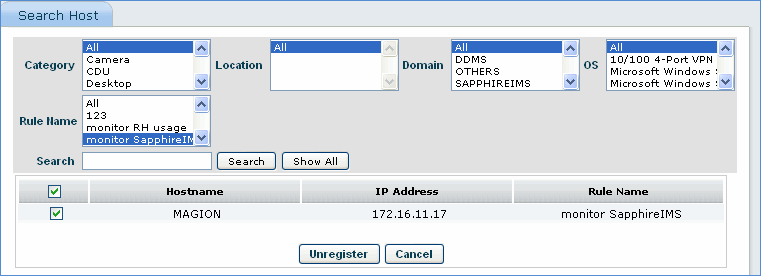
1. Click Monitoring Rules Schedule
2. Check the monitoring rule and click View Registered Nodes
3. Check the host name and click Unregister
 Note: If a metering policy is deleted with unregistered nodes, a warning is displayed. The metering rule can still be deleted using the Force Delete option. The rule is deleted, but the registration will be active on the nodes and software metering data will be collected for the respective nodes
Viewing software metering statistics
1. Click Inventory, Software Metering

|
Sr. No |
Field Name |
Description |
|
1 |
Software Name |
Gives the name of the software monitored for usage |
|
2 |
Installed Systems Count |
Gives the count of number of systems in which the software exe is installed |
|
3 |
Used Systems Count |
Gives the count of number of systems which have used the software |
|
4 |
Usage Frequency |
Gives the frequency of usage of the software |
|
5 |
Last Used On |
Gives the date of last usage of the software |
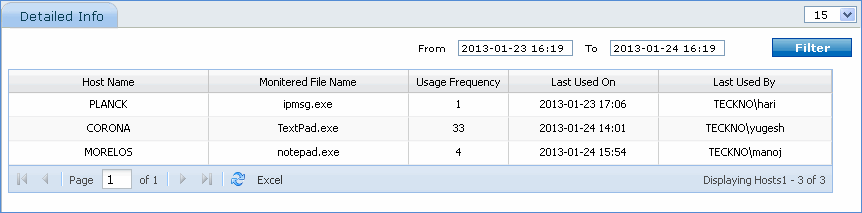
Click on Software Name for further details
|
Sr. No |
Field Name |
Description |
|
1 |
Host Name |
Gives the host name which has used the software |
|
2 |
Monitored File Name |
Gives the name of the software exe monitored |
|
3 |
Usage Frequency |
Gives the frequency of usage of the software in the host machine |
|
4 |
Last Used On |
Gives the date of last usage of the software in the host machine |
|
5 |
Last Used By |
Gives the name of the user who last used the software on the host machine |
[ Home | Top of page | Previous Page | Next Page ]