
For any kind of e-mail notifications (alarms/SLA/Service request etc.) the SMTP server needs to be set correctly to send out the E-mail notifications. SapphireIMS supports SMTP and Exchange mail servers for email notifications. It also supports OAuth2 for authentication for both Exchange and GSuite/Gmail.
Limits can be set on the number of recipients, number of mails in a day and by module. Refer section Setting Global Limits for Mails.
Click 'Settings' then from the 'Advanced System Settings' section click 'SMTP Settings'. The following screen is displayed. Select 'SMTP' as the 'Mail Service'.
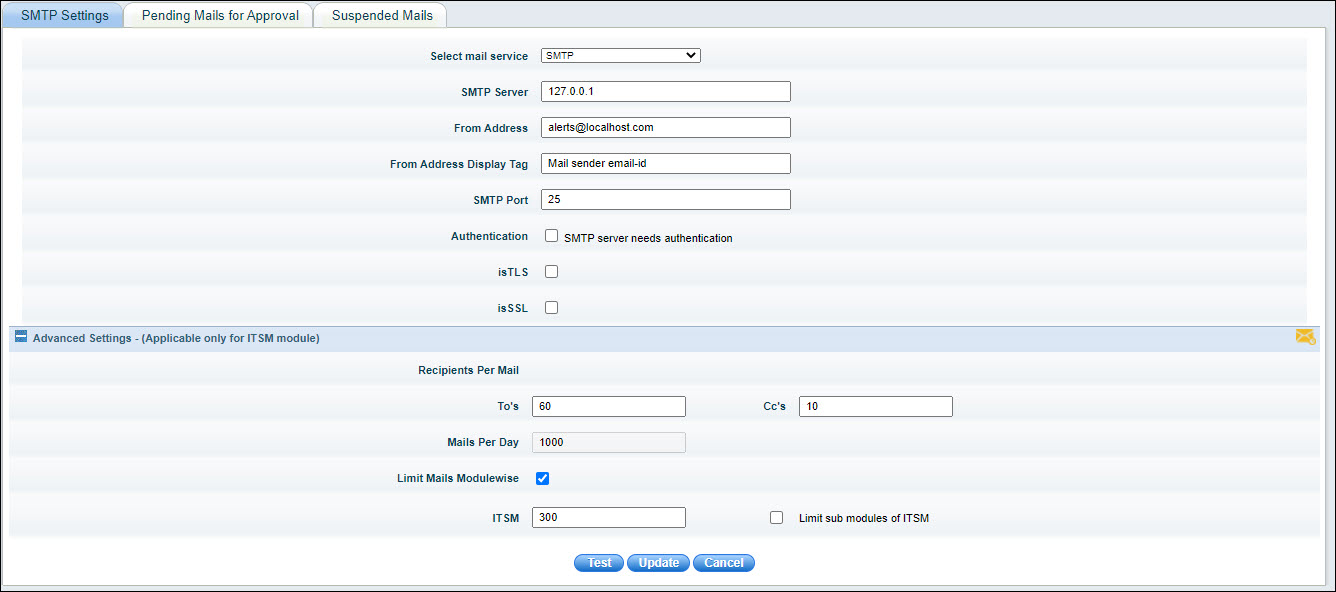
The SMTP settings fields are described below.
|
Click the 'Test' button to verify the SMTP settings. This will initiate an e-mail transaction and send a test mail (to the same ID as a self test); if this is successful then the SMTP settings are correct. If this throws an error, then verify your SMTP settings.
Click on 'Update'.
Click 'Settings' then from the 'Advanced System Settings' section click 'SMTP Settings'. The following screen is displayed. Select 'Exchange' as the 'Mail Service'.
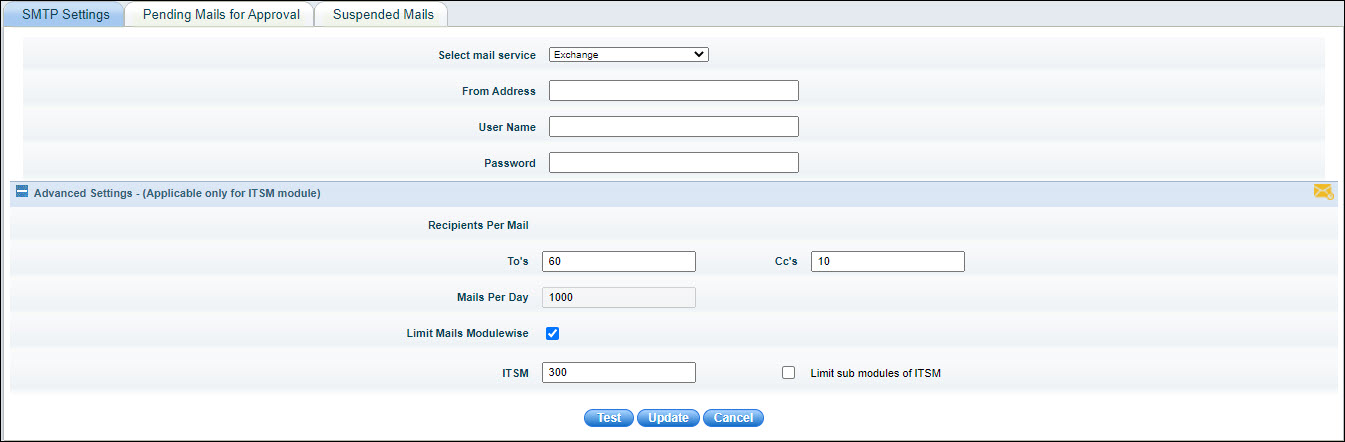
The fields are described below.
|
Click the 'Test' button to verify the Exchange settings. This will initiate an e-mail transaction and send a test mail (to the same ID as a self test); if this is successful then the Exchange settings are correct. If this throws an error, then verify your Exchange settings.
Click on 'Update'.
Click 'Settings' then from the 'Advanced System Settings' section click 'SMTP Settings'. The following screen is displayed. Select 'OAuth2 Authentication Exchange' as the 'Mail Service'.
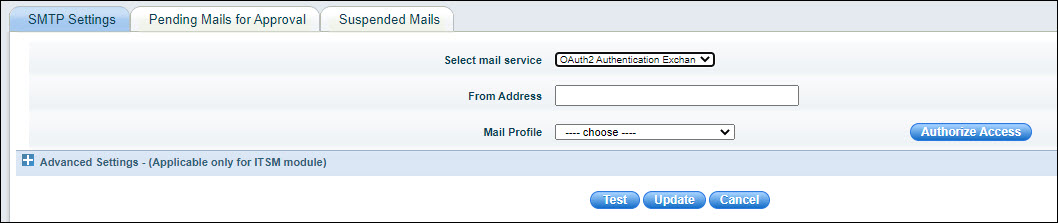
The fields are described below
|
Click the 'Test' button to verify the SMTP settings. This will initiate an e-mail transaction and send a test mail (to the same ID as a self test); if this is successful then the SMTP settings are correct. If this throws an error, then verify your SMTP settings.
Click on 'Update'.
Click 'Settings' then from the 'Advanced System Settings' section click 'SMTP Settings'. The following screen is displayed. Select 'SMTP OAuth2 GSuite/Gmail' as the 'Mail Service'.
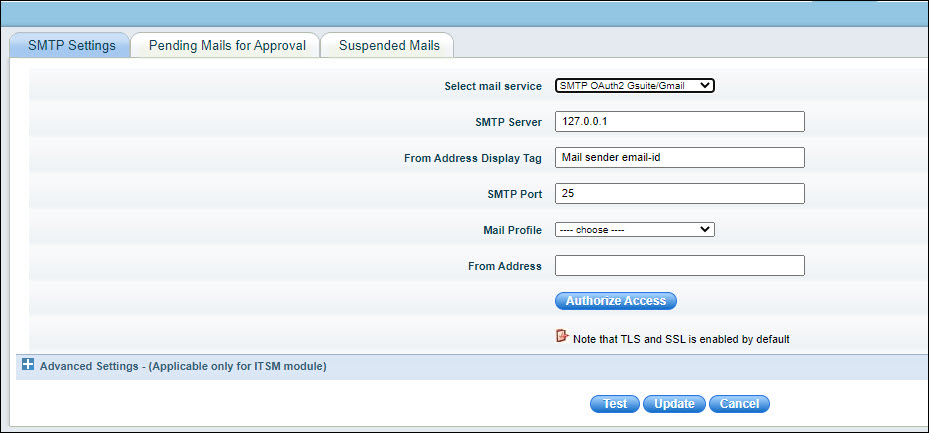
The SMTP settings fields are described below.
|
Click the 'Test' button to verify the SMTP settings. This will initiate an e-mail transaction and send a test mail (to the same ID as a self test); if this is successful then the SMTP settings are correct. If this throws an error, then verify your SMTP settings.
Click on 'Update'.
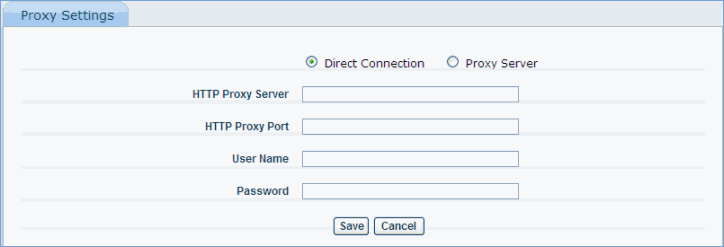
Some of the modules in SapphireIMS (like patch download etc) require access to the Internet. If you need to access the Internet via the proxy then specify the same in the configuration provided by Sapphire
Click the 'Settings' tab. In the 'Advanced System Settings' section, click 'Proxy Settings'. Select the ‘Proxy Server’ radio button as shown in this link
|
When the limits exceed, sending of mails is paused and the list
of backlog mails is displayed to take action. Click on the tab 'Pending Mails for Approval' to view
the list of mails not sent. From the Settings screen you can click
on  to view this screen.

If you want to send any mails, select the mails and click on 'Resume'.
To discard mails, select the mails and click on 'Suspend'. Mails which are suspended will be displayed under 'Suspended Mails'. Refer to Suspended Mails.
Click on 'Settings' button to return to the 'SMTP Settings' screen.
Check the 'Auto Resume' box to automatically cause the mails sending to be resumed once the count of pending mails falls below the threshold or the limits are increased. Note that the Auto Resume box should be first checked before increasing the limits.
Click on 'Suspended Mails' tab to view the suspended mails.

 Note: Mails in this list
remain forever and are not purged.
Note: Mails in this list
remain forever and are not purged.
The following Global Settings set the overall limits globally across all modules. This can be set in the Global Settings. Refer to Settings->Advanced System Settings->Global Settings for details.
'MAIL_LIMIT_PER_DAY_SMTP' - set the limit for overall mails outgoing per day for SMTP server.
'RECIPIENTS_LIMIT_PER_MAIL_SMTP' - set the limit for recipients per mail for SMTP server.