
As mentioned earlier, once a device is discovered and classified as ‘managed’ it will be associated with a data collection type and a credential profile. However, if this needs to be changed then perform the following steps.
1. Select the device from the discovery view or the inventory view. The details of the device will be displayed in the summary page. Click '' ‘Change Data Collection Type’ icon in the ‘Action’s sub section. It will display the screen as shown below.
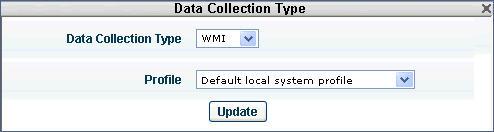
2. By default it will display the current ‘data collection type’ and the ‘profile’ that’s tagged to the device. Override this by selecting the data collection type and profile of your choice. The device will be tagged with the selected data collection type and profile. This will be used by IMS system for subsequent data collections.
3. If you need to collect data with the new data collection type then, click icon '' ‘Get Inventory Data’ in the 'Actions’ sub section. This will trigger an immediate inventory data collection for the selected device. To track the status of the data collection you can click ‘Settings – Remote Management – Task Status’ menu item. In the list box select the option ‘System Data collection’. This will provide the details of the job that is posted.
[ Home | Top of page | Previous Page | Next Page ]