
SapphireIMS Log Analyzer facilitates collection of log events centrally and presenting it in dashboards and reports. SapphireIMS can collect different types of log events from a variety of sources and these include Windows Event Logs, Syslogs from Linux and other devices, SNMP Traps, Application logs which can be in custom formats.
 Note:
Log Analyzer feature will be available only after you install SapphireIMS
Log Analyzer plug-in. Refer to the document 'SapphireIMS
Log Analyzer 5.0 Plug-in Ver 1.4 Installation.pdf' available at
'http:www.sapphireims.com/patches'
for the details on installation.
Note:
Log Analyzer feature will be available only after you install SapphireIMS
Log Analyzer plug-in. Refer to the document 'SapphireIMS
Log Analyzer 5.0 Plug-in Ver 1.4 Installation.pdf' available at
'http:www.sapphireims.com/patches'
for the details on installation.
Click the 'Settings' tab. In the 'Fault and Notifications' section, click 'Log Analyzer'. The Log Analyzer configuration screen is displayed.
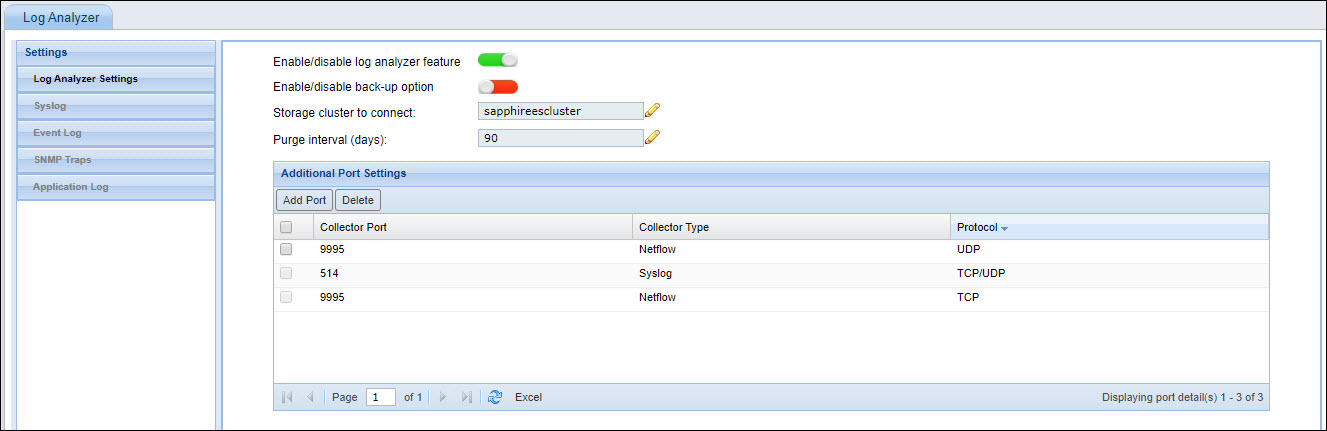
Enable the log analyzer feature using the slider.
Enable or disable the back-up option. If this option is enabled, SapphireIMS will take a backup of the data.
Edit the storage cluster name which
is used for the storage of data. Click on  to edit
the cluster name.
to edit
the cluster name.
Default purge interval (days) until
which the data is available. Click on to edit the
purge interval.
Default port details are displayed. To add a new collector, click 'Add Port'.

Select the 'Collector Type', ''Protocol', 'Port Number'.
Click on 'Save'.
After the Log Analyzer is configured refer to the following sections for specific configurations for each of the logs.
For details on configuring systems for Syslog collection, refer Settings->Fault and Notifications->Configuring Syslog.
For details on configuring systems for event log collection, refer Settings->Fault and Notifications->Event Log.
For details on configuring devices for SNMP traps collection, refer Settings->Fault and Notifications->SNMP Traps.
For details on configuring applications for log collection, refer Settings->Fault and Notifications->Application Log.
For details on configuring Netflow, refer Settings->Fault and Notifications->Traffic Monitoring.
Note: For generating Alarms and creating Service Desk Records based on Syslog, Event Log, SNMP Traps and Application Logs, refer to Settings->Fault and Notifications->Alarm Unification.