
The incidents are organized into three different tabs namely My Incidents, My Work Group and All Incidents.
1. My Incidents – This tab will list all incidents submitted or owned by the logged in user. This tab is only visible for users with service desk 'User' role.
2. My Work Group - This tab will list all incidents submitted in the Incident Management project which are mapped to a particular work group.
3. All Incidents – This tab will list all incidents submitted in the Incident Management project. Only users with Technician role will have permission to view this tab.
The fields displayed can be customized by clicking Customize View option in Actions menu.
Notes:
1. Only users with Approval Manager role, Inter Project Admin role or Technician role will have access to Customize View option
2. Pagination value (display record count) once defined is global for the user session unless changed
3. You can select the RequestID, Title or Description fields and copy the same from the following listing pages:
My Incidents/All Incidents/My Work Group/Incidents by Email/SMS
4. SLA violated incidents are displayed in red color
5. New or unread incidents are highlighted in Bold font where as opened incidents are displayed in the Regular font.
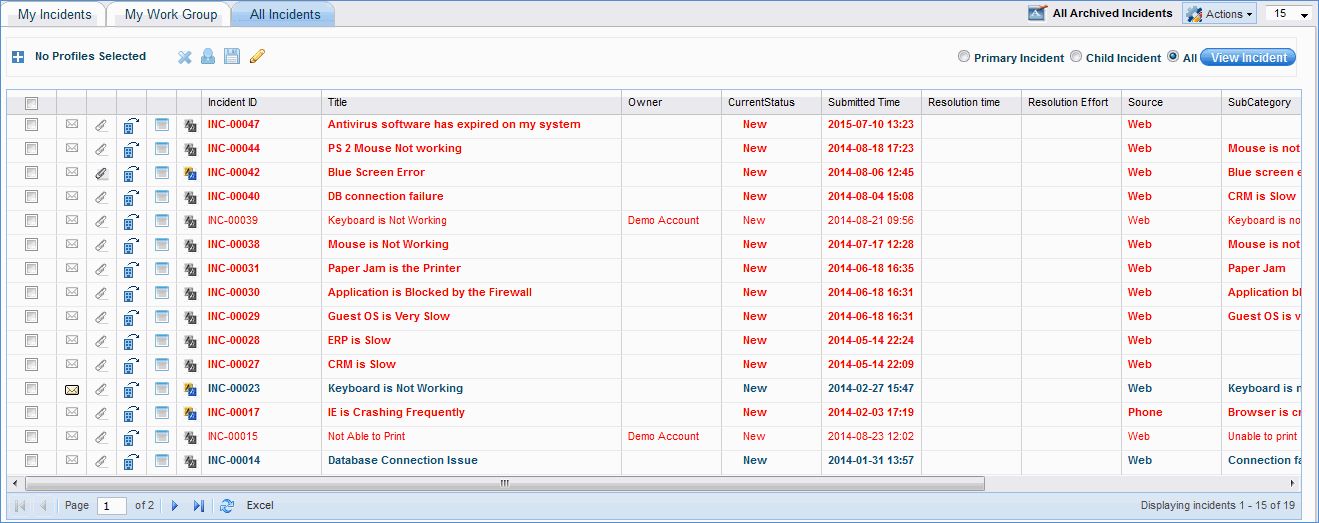
Incident Listing
Click on the 'Quick View' icon to open the service desk record and view/edit the details
Click on the 'Asset details' icon to view the details of the associated assets as shown below
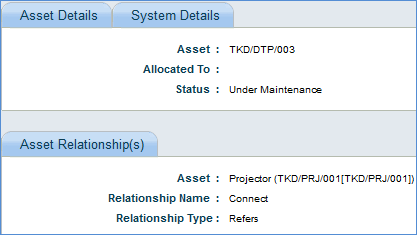
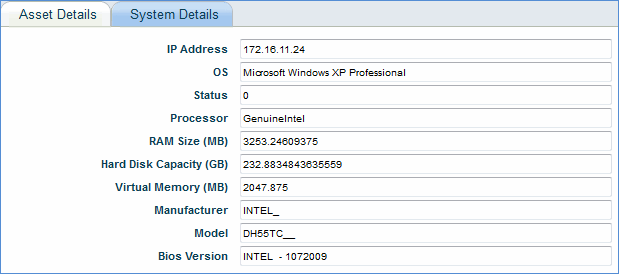
Proxy Submitter: If the incident is submitted on behalf of somebody, 'Proxy Submitter' will list the name of the logged in user, and 'Submitted By' will list the actual user.
Click
 icon to change the state of the service desk record.
1.
Click 'Attachments' tab or click the ' ' Attachments
icon in the incident listing page
' Attachments
icon in the incident listing page
2. Check the attachments and click 'Compressed Download' to download multiple attachments.
Click the below link to view Actions drop down list box details
You can bookmark tickets in 'My Incidents' listing page. Bookmarks are specific to a project and help you to prioritize tickets in 'My Incidents' listing page. Bookmarks feature is available to all users who have submitted tickets or who are owners of tickets.
To add a bookmark to a ticket, go
to service desk 'My Home' page and click on the 'Manage Bookmark Settings
' '
icon. This will display the list of existing bookmarks. Click 'ADD'
to add a new bookmark
'
icon. This will display the list of existing bookmarks. Click 'ADD'
to add a new bookmark
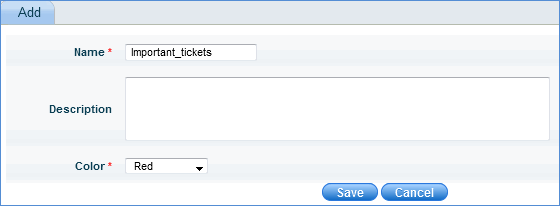
Enter the bookmark name, description and select the color of the bookmark.
Click 'Save'
Next, go to 'My Incidents' listing
page and click on the bookmark flag icon ' ' and
select the bookmark from the drop down and click 'Save'. You can also
check a number of tickets to be book marked in the same manner. The
'My Incidents' listing page is now displayed with the book marked
tickets as follows
' and
select the bookmark from the drop down and click 'Save'. You can also
check a number of tickets to be book marked in the same manner. The
'My Incidents' listing page is now displayed with the book marked
tickets as follows
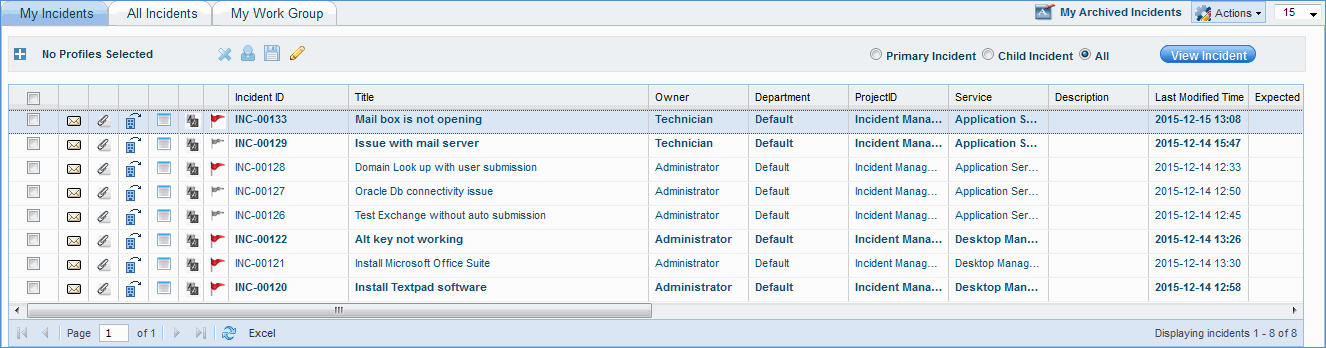
Click on the collapsible panel 'Bookmark Views' to view the bookmarks configured. You can also access the book marked tickets from the home dashboard 'My Bookmarks'
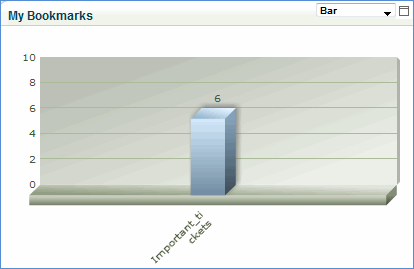
Click on the bar to view all the six book marked tickets
1. Customize
View: Click  option
to customize the request listing screen.
option
to customize the request listing screen.
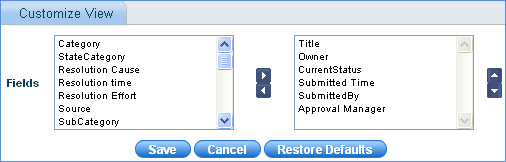
Select the fields to appear in the request listing page as well as the order of the fields by using the arrow keys.
Click Save to save the custom view
Click 'Restore Defaults' to restore the default custom view
2. Create Service Request: Refer "Open Service Request from an Incident"
3. Link to Service Request: Refer "Open Service Request from an Incident"
4. Create Problem: Refer "Open Problem from Incident"
5. Link to Problem: Refer "Link Incidents to a Problem"
6. Create Change: Refer "Open Change Request from an Incident"
7. Link to Change: Refer "Link Incidents to Change"
8. Bulk State Transition: Refer "Bulk State Transition"
9. Mark as Unread: Check the incident record to be highlighted as Unread, click the 'Actions' drop down list box and click 'Mark as Unread' option. This option will highlight the record in Bold.
10. Mark as Read: Check the incident record, click the 'Actions' drop down list box and click 'Mark as Read' option. This represents that the record is read.